
Excel Logo: History, Design, and How to Find the Icon 2026 October
🗨️ The Excel logo is a green 'X' icon representing Microsoft's spreadsheet app. Learn its design history, what the icon means, and where to find the

What Is the Excel Logo?
The Excel logo is a green square icon featuring a bold white letter 'X' — the recognisable visual mark of Microsoft Excel, the world's most widely-used spreadsheet application. Whether you're opening Excel from a Windows taskbar, a Mac Dock, a mobile home screen, or the Microsoft 365 web launcher, the green X icon is your consistent navigation point across every platform where Excel is available. The logo is deliberately simple: a strong letter, a bold colour, a clear background — designed to be immediately identifiable at any size without relying on fine details that would disappear at small icon sizes.
The Excel logo is the visual icon representing Microsoft Excel — the spreadsheet application that's been a core part of Microsoft Office since 1985. Today's Excel logo features a bold green square containing a stylised white 'X' on a dark background, making it one of the most recognisable icons in the business software world. If you've ever opened Microsoft 365 on any device, you've seen it: the green square icon with the white 'X' that distinguishes Excel from its Office siblings (Word's blue W, PowerPoint's red P, and Outlook's blue O).
The logo's design is deliberate. Green was chosen to visually associate Excel with financial data — spreadsheets, budgets, and numbers — while the 'X' character does double duty as both the first letter of 'Excel' and a reference to the grid-based nature of the application (rows and columns forming an X-like intersection). Microsoft's Office suite uses a colour-coded icon system so that users can identify each application instantly, even at small icon sizes on a taskbar or mobile home screen. Excel's green has remained consistent through multiple design iterations over the decades.
Understanding the Excel logo matters in practical contexts. If you're studying for Microsoft Office Specialist (MOS) certification exams, you need to be able to navigate the Office interface confidently — including finding Excel among your installed applications. If you work in design or marketing and need to reference Microsoft Excel in a presentation or document, using the correct, current logo ensures your materials look professional and accurate. The logo has changed significantly across Excel's history, and using an outdated icon in professional materials can undermine credibility.
- Current logo design: Dark green square with a bold white 'X' on a lighter green background inside — part of Microsoft's 2019 Fluent Design refresh
- Primary colour: Green (#217346 is the classic Excel brand green used in UI elements; the icon uses darker/lighter green variants)
- Icon letter: Stylised 'X' — represents both 'Excel' and the intersection/grid nature of spreadsheet cells
- Office colour system: Excel = green, Word = blue, PowerPoint = orange-red, Outlook = blue, OneNote = purple, Teams = purple
- First Excel logo: 1985 (Mac version); Windows version followed in 1987
- Current design era: 2019 Fluent Design System icons (Microsoft 365 era)
- Where to find official logos: Microsoft Brand Central (Microsoft's official brand resource centre)
History of the Excel Logo: How It's Changed
1985–1993: The Classic Era
1994–2003: The Office 97–2003 Look
2003–2013: Office 2007 and the Ribbon Era
2013–2018: Metro and Flat Design
2019–Present: Fluent Design and Microsoft 365
What the Current Excel Logo Looks Like
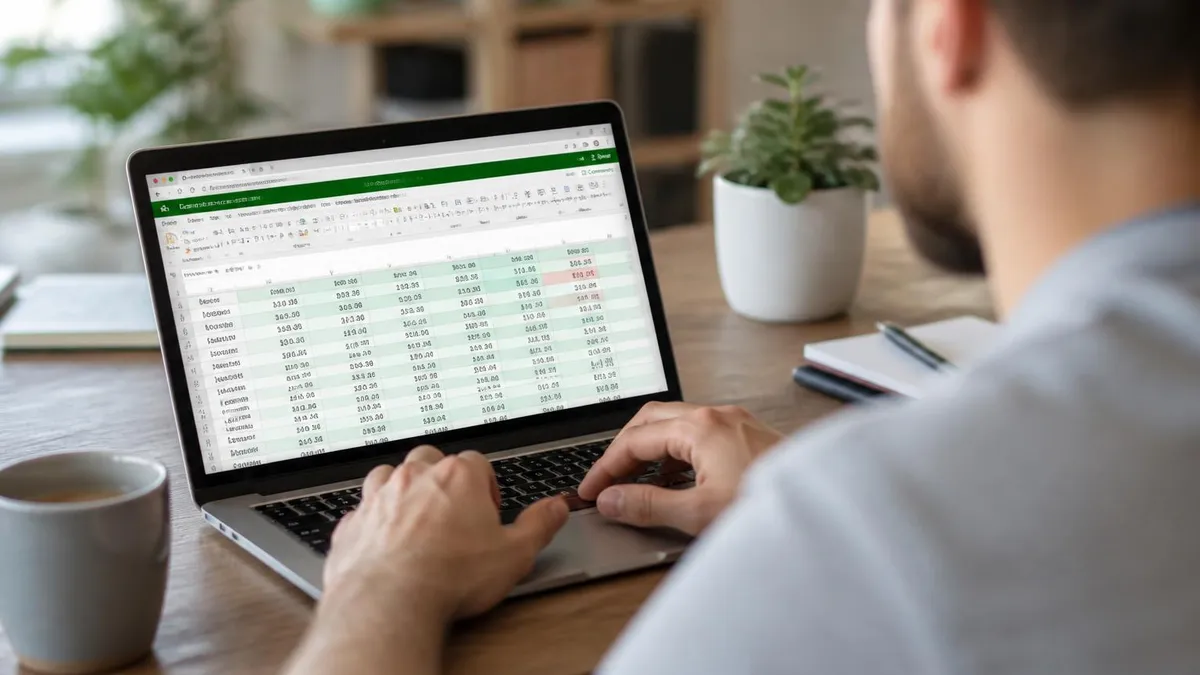
The current Excel logo introduced with the 2019 Fluent Design refresh uses a two-tone green square as its base. The square transitions from a deeper, richer green in the lower-left corner to a lighter, brighter green in the upper-right, creating a subtle dimensional effect without heavy gradients or shadows. On top of this green background sits a bold white 'X' shape — not a simple letter X, but a carefully designed icon element with precise proportions that allow it to remain readable at icon sizes as small as 16 pixels wide while also looking sharp at large display sizes.
The 'X' in the Excel logo is distinctive from a standard X because of the way it's constructed. It's formed from two overlapping rectangular bars crossing diagonally, with a slight offset that gives it weight and presence. The white colour creates strong contrast against the green background, ensuring the icon is immediately identifiable even in peripheral vision or when scanning a crowded taskbar. This contrast-first approach to icon design reflects Microsoft's broader accessibility goals — icons should be recognisable by people with varying levels of visual acuity and in varied lighting conditions.
The colour green chosen for Excel has specific brand significance within the Microsoft Office ecosystem. Green has long-standing cultural associations with finance, money, and numerical data — think stock market tickers, financial dashboards, and accounting software interfaces. Microsoft's choice of green for Excel reinforces the application's primary use case at a glance: this is the tool for numbers, data, and financial work. When placed alongside Word (blue), PowerPoint (orange-red), and Teams (purple), each application's colour communicates something about its purpose and helps users navigate a multi-application environment with speed and confidence.
On mobile devices, the Excel app icon uses a rounded-square format (the 'squircle' shape standard on iOS and Android) while maintaining the same two-tone green background and white X. The desktop and web versions use a square format. Despite these minor shape adaptations for different platforms, the core visual identity — green, white X — remains completely consistent, demonstrating sophisticated brand discipline across a global product used by hundreds of millions of people.
Where to Find the Official Excel Logo
Microsoft's official brand resource centre (available at microsoft.com/en-us/legal/intellectualproperty/trademarks/en-us.aspx) provides guidance on using Microsoft trademarks, including the Excel logo. For official brand assets, organisations with appropriate licensing or partnership status can request materials through Microsoft's partner programmes. Do not use unofficial logo downloads from third-party sites — pixel quality, colour accuracy, and licensing compliance vary significantly.
If you're a Microsoft 365 subscriber deploying Excel across an organisation, official application icons are included with your Microsoft 365 licence. These icons appear automatically when Excel is installed on devices — you don't need to source them separately. The admin centre provides guidance on deploying Office applications and their associated icons in enterprise environments.
Microsoft Partners who have joined the Microsoft Partner Network (MPN) have access to official brand assets through the partner portal. These assets include product logos in formats suitable for co-marketing, websites, and presentations — provided the usage complies with Microsoft's brand guidelines. Unauthorised use of Microsoft logos, including the Excel logo, is a trademark violation.
Within Excel itself, the Insert > Icons feature provides access to Microsoft's library of SVG icons — though this is a general icon library rather than specifically the Excel application logo. If you need to include Excel's logo in a presentation (say, a slide about the tools your team uses), the most reliable approach is to take a screenshot of the installed application icon at high resolution, or to use Microsoft's official media resources for press and partner materials.
Excel Logo in Context: Office Suite and Branding
Microsoft Office applications use a consistent colour-coding system that allows users to identify each application at a glance. Understanding this system helps you navigate Microsoft 365 environments more efficiently — particularly if you work across multiple applications daily:
- Excel (green): Spreadsheets, data analysis, financial modelling, visualisations
- Word (blue): Documents, reports, letters, long-form writing
- PowerPoint (orange-red): Presentations, slide decks, visual storytelling
- Outlook (blue, different shade): Email, calendar, contacts, tasks
- OneNote (purple): Digital notebooks, note-taking, research organisation
- Teams (purple): Communication, video calls, team collaboration
- OneDrive (blue): Cloud storage, file syncing, sharing
- SharePoint (teal): Team sites, document libraries, intranet
- Access (red): Desktop database management
The colour system is consistent across platforms — mobile apps, desktop applications, and web versions all use the same colour identity for each application.

How to Use the Excel Logo Correctly
Microsoft's trademarks — including the Excel logo, the product name 'Microsoft Excel', and related brand assets — are protected intellectual property. Using the Excel logo in any public-facing context without authorisation can constitute trademark infringement, even if your intentions are informational or educational. Most individuals and organisations will never need to reproduce the actual Excel logo; they simply use the installed application and its icon appears automatically through the operating system. But in specific contexts — creating training materials, marketing presentations, or public-facing documentation — questions arise about logo usage.
Microsoft provides official guidance through its Trademark and Brand Guidelines, available on the Microsoft website. The general principles are: do not alter the logo's colours, proportions, or design; do not use the logo in a way that implies Microsoft endorses your product or service; do not use the logo in materials that could reflect negatively on Microsoft or its products; and do not use the logo more prominently than your own branding if you're creating materials that reference multiple tools or platforms.
For businesses creating training materials for internal use — such as a corporate Excel tutorial — limited logo use is typically acceptable under fair use principles, though this varies by jurisdiction.
For journalists, bloggers, and media professionals who need product images for editorial purposes, Microsoft's News Centre (news.microsoft.com) provides approved press images of products including Office application icons. These are intended for press and editorial use and come with Microsoft's implicit approval for that context. Using a screenshot of the official installed application icon is also generally acceptable for editorial and educational content.
Third-party websites that offer 'free Excel logo downloads' vary widely in quality and legal status. Many offer the correct icon in appropriate formats (SVG, PNG), but the licensing terms for those downloads are often unclear. For any professional or commercial context, sourcing logos directly from Microsoft's official channels is always the safer approach. The specific shade of green, the proportions of the X, and the overall design quality of the official logo are often subtly but noticeably better than unofficial reproductions — particularly when logos are displayed at large sizes.
Excel Logo Usage Checklist
- ✓Only use official Microsoft-sourced Excel logo files for any commercial or public-facing materials
- ✓Do not alter the Excel logo's colours, proportions, orientation, or design elements
- ✓Do not add effects (drop shadows, gradients, outlines) to the Excel logo that change its official appearance
- ✓Do not use the Excel logo in a way that suggests Microsoft endorses your product, service, or organisation
- ✓For press and editorial use, source images from Microsoft's official News Centre or use screenshots of the installed application
- ✓For internal training materials, limited logo use is typically acceptable — confirm with your legal team for commercial publications
- ✓Use the current 2019 Fluent Design logo in all new materials — avoid outdated versions of the Excel icon that may confuse users
- ✓Ensure sufficient contrast and clear space around the logo so it remains legible at the size you're using it
Excel Logo vs Competitors: Brand Recognition
- +The green X is one of the most immediately recognisable software icons globally — decades of market presence have made the Excel logo synonymous with 'spreadsheet' in many users' minds
- +Consistent colour coding across the Office suite makes navigation intuitive — green = Excel is a learned association that works even for users who aren't consciously aware of the system
- +The 2019 Fluent Design refresh modernised the logo without losing brand recognition — the evolution was confident enough to feel fresh while maintaining continuity
- +The logo works effectively at all sizes — from 16px taskbar icons to large marketing displays — a sign of strong icon design fundamentals
- +The green-X system is accessible and distinct for most users with colour vision differences, as shape (the X) provides identification independent of the green colour
- −Excel and Outlook both use shades of blue-adjacent colours (Excel is green, Outlook is a specific blue), which can create occasional confusion at small icon sizes for new users who haven't yet memorised the Office colour system
- −The Fluent Design system icons look very similar to competitors' product icons in style (Google Workspace, LibreOffice, Notion all use similar flat icon aesthetics), reducing the distinctiveness advantage that earlier era logos had
- −Frequent logo updates over Excel's history have created inconsistency in documentation and training materials — older textbooks, help sites, and tutorials often show outdated icons that don't match what users see in current versions

Finding Excel on Your Computer Using the Logo
One of the most practical uses of knowing what the Excel logo looks like is simply finding the application on your computer or device. If you're new to Excel or working on an unfamiliar machine, the green X icon is your navigation target. On Windows, Excel appears in the Start menu under the 'Microsoft 365' folder (or 'Microsoft Office' in older installations) and may be pinned to your taskbar. On Mac, it appears in the Applications folder and the Dock. On iOS and Android, the green X appears among your installed apps.
If Excel doesn't appear on your device and you need it, the logo's absence is a signal to check your Microsoft 365 subscription status. Go to office.com and sign in with your Microsoft account — if your subscription is active, you can install Excel from there. The web version of Excel (Excel for the web) is accessible through any browser at no additional cost for Microsoft 365 subscribers, using the same green X icon in the app launcher at the top of the page.
It's also worth noting that the Excel icon on your device is a live signal of which version you have installed. If you're studying for the Microsoft Office Specialist (MOS) Excel certification, the exam tests specific features that may differ between Excel versions — 2019, 2021, and Microsoft 365 each have slightly different feature sets.
The icon itself looks the same across these versions, but if your organisation or school uses a specific version, making sure you're practising on that version (rather than a different one) matters for exam preparation. Opening Excel and checking Help > Account shows you exactly which version and build you're running.
For users studying for Microsoft Office Specialist (MOS) Excel certification, being able to open Excel quickly and navigate its interface efficiently is a fundamental skill. During the actual certification exam, you work in a live Excel environment rather than answering multiple-choice questions about features — so comfort with launching and navigating the application contributes to your exam performance. Knowing the Excel logo, finding the application, and opening it with confidence are the very first steps in every Excel session you'll ever have, whether in practice or examination conditions.
Microsoft Excel: By the Numbers
Excel Logo in Professional Documents and Presentations
A common scenario where the Excel logo matters in practice is when creating professional materials that reference the tools your organisation or team uses. Technology stack slides in company presentations, tool onboarding documentation, job postings that list required software skills, and training guides all frequently include software logos alongside text descriptions. In these contexts, using the correct, current Excel logo signals attention to detail and professionalism.
When inserting the Excel logo into a PowerPoint presentation (or Google Slides, Keynote, or any other presentation tool), the key technical considerations are file format and transparency. Use an SVG or PNG file with a transparent background rather than a JPEG, which will add a white rectangle behind the logo rather than allowing it to sit cleanly against your slide background.
Microsoft's official press images are typically provided in formats appropriate for these uses. If you're working at small sizes — say, a row of software logos in a footer — the simple green square with the white X is distinctive enough to remain recognisable at 30–40 pixels wide.
For word-processed documents, inserting the logo as an image works well for formal reports or proposals that reference Excel as a tool. Keep the logo proportionally scaled — don't distort it by dragging one corner without holding Shift. Maintain some white space around the logo so it doesn't appear cramped against surrounding text. These are basic graphic design principles, but they matter when the logo is one of several being displayed together in a comparison or stack list context.
Training materials and e-learning content that teach Excel to new users commonly include the Excel logo prominently — both as a navigation aid ('look for this icon to open Excel') and as a branding element that helps learners associate the visual identity with the tool they're learning.
In these educational contexts, using an outdated Excel logo can genuinely confuse learners who then look for a different-looking icon on their actual devices. Keeping screenshots and logos current with the installed version of Excel is good training design practice and reduces the support burden on instructors who'd otherwise field questions from learners who can't find the correct application on their machine.
Third-party sites offering 'free Excel logo downloads' vary widely in quality and legal compliance. Common issues include: incorrect green colour values (the logo may appear too bright, too dark, or with a blue tint), incorrect proportions of the 'X' element, low-resolution rasters that look blurry at professional print sizes, and unclear or non-existent licensing terms. Using an inaccurate logo in client-facing materials or publications reflects poorly on your attention to detail. For any professional use, source the Excel logo directly from Microsoft's official brand resources or use a screenshot of the actual installed application icon at adequate resolution. Microsoft's News Centre (news.microsoft.com) provides approved product images for press and editorial purposes — this is the safest source for legitimate, high-quality Excel logo files.
Excel Logo vs Google Sheets and Other Spreadsheet Apps
The visual identity of a spreadsheet application is more commercially significant than it might initially appear. When organisations choose between Excel and its competitors, the logo appears in vendor evaluations, procurement materials, training documentation, and IT asset management systems.
Brand familiarity shapes the perception of product quality — a well-designed, widely-recognised logo like Excel's green X carries implicit authority that newer competitors have to work hard to match. That's part of why newer spreadsheet tools invest significantly in icon design even when their features are strong — the logo is often the first and most repeated touchpoint in a user's experience of any software.
Microsoft Excel and Google Sheets are the two dominant spreadsheet applications used in professional environments today, and their logos reflect their very different brand positions. Excel's green X communicates decades of established authority — it's a logo that professionals have associated with serious data work since the late 1980s. Google Sheets uses a green icon as well (a document outline with a grid pattern), reflecting Google's awareness that green has become culturally associated with spreadsheets. Despite both using green, the two logos are distinct enough to avoid confusion: Excel's bold X versus Sheets' document shape.
LibreOffice Calc — the open-source spreadsheet alternative — uses a green-tinted icon as well, continuing the green-equals-spreadsheets convention across the industry. Apple Numbers, by contrast, uses a teal-to-green gradient with a bar chart icon, opting for a visual representation of data output rather than an abstract letter or document shape. Zoho Sheet uses an orange-to-red icon, deliberately distinguishing itself from the green convention.
For professionals, knowing which logo belongs to which application matters when screenshots, tutorials, or device setups show multiple spreadsheet applications installed. On a Mac with both Excel and Google Sheets in the browser bookmarks, the visual distinction helps avoid accidentally opening the wrong application. In enterprise environments where standardising on a single spreadsheet tool is important for collaboration and file compatibility, the logos serve as immediate visual reminders of which application is being used — and which one to open when you need to share a file with a specific colleague or team.
Excel Logo Questions and Answers
About the Author

Business Consultant & Professional Certification Advisor
Wharton School, University of PennsylvaniaKatherine Lee earned her MBA from the Wharton School at the University of Pennsylvania and holds CPA, PHR, and PMP certifications. With a background spanning corporate finance, human resources, and project management, she has coached professionals preparing for CPA, CMA, PHR/SPHR, PMP, and financial services licensing exams.