
Doc to Excel: Complete Guide to Converting Documents Into Spreadsheets
Learn doc to excel conversion with expert tips on VLOOKUP, drop-down lists, merging cells & more. 🎯 Master Excel skills today.

When people search for ways to move data from a Word document into a spreadsheet, the phrase doc to excel becomes one of the most common queries in the Microsoft Office ecosystem. Whether you are a student organizing research notes, an office professional migrating legacy reports, or a data analyst pulling structured tables out of scanned PDFs, converting documents into Excel workbooks is a fundamental productivity skill that saves hours of manual re-entry. Understanding the conversion process helps you preserve formatting, retain formulas, and avoid the costly errors that come from copying data by hand.
Excel is far more than a grid of cells. From the celebrated vlookup excel function that lets you cross-reference thousands of rows in seconds, to the straightforward task of learning how to create a drop down list in excel for cleaner data entry, the program rewards users who invest time in mastering its core tools. Converting a Word document into Excel is often the first step in a longer workflow — one that eventually leads you into pivot tables, conditional formatting, and automated dashboards that update in real time.
The conversion process itself has evolved dramatically over the past decade. Early workarounds required copy-paste gymnastics and hours of reformatting. Today, Microsoft 365 offers built-in import wizards, Power Query connections, and even AI-assisted data recognition that can detect tabular structures inside unstructured documents. Third-party tools and browser-based converters have also matured, giving users a range of free and paid options depending on accuracy requirements and file volume.
This guide walks you through every major method for converting documents to Excel, from the simplest manual techniques to Power Query automation. Along the way you will pick up essential Excel skills such as how to freeze a row in excel so column headers stay visible while you scroll, how to merge cells in excel for cleaner report layouts, and how to use VLOOKUP to validate imported data against a master reference list. Each of these techniques becomes far more valuable once your raw data lives inside a properly structured workbook.
It is worth noting that document-to-spreadsheet conversion is not a one-size-fits-all operation. A two-column Word table converts almost instantly with zero cleanup, while a multi-page unstructured report packed with narrative paragraphs may require a combination of regex parsing, manual column mapping, and data validation rules before it is truly analysis-ready. Knowing which tool to reach for — and when — is the real skill this article aims to build in you.
We also cover practical tips for keeping your converted data clean and auditable. Concepts like inner excellence — a philosophy of continuous improvement championed in training programs and the inner excellence book by Jim Murphy — translate well into spreadsheet work. Approaching each conversion task with attention to detail, a clear process, and a commitment to verifiable accuracy is what separates mediocre data management from truly professional-grade work. Whether your goals are professional certification, a job promotion, or simply fewer errors in your weekly reports, the skills here will serve you well.
Finally, this guide is organized so you can jump to the section most relevant to your current task. The table of contents below links directly to method walkthroughs, comparison tabs, a step-by-step checklist, and a comprehensive FAQ. By the end, you will have a repeatable workflow for any doc-to-Excel conversion scenario you encounter, along with the Excel function knowledge to make the most of your newly imported data.
Doc to Excel Conversion by the Numbers

How to Convert a Doc to Excel: Step-by-Step Methods
Prepare Your Source Document
Choose Your Conversion Method
Run the Import or Conversion
Map and Clean Your Columns
Apply Formulas and Validation
Save and Document Your Workflow
Once your data has successfully landed in Excel, the real work begins. Raw imported data is rarely analysis-ready. Columns may be misaligned, number formats might be stored as text strings, and date fields could display in the wrong locale.
The first skill every Excel user needs after a doc-to-excel conversion is knowing how to freeze a row in excel so that your header row stays pinned at the top as you scroll down through hundreds or thousands of records. To do this, click the row immediately below your header, then go to View → Freeze Panes → Freeze Panes. Your column labels will now remain visible regardless of how far down you navigate.
Merging cells is another skill that becomes immediately relevant when formatting converted data for reports or presentations. Learning how to merge cells in excel allows you to create clean section headers that span multiple columns, group related data visually, and produce professionally formatted output that stakeholders can read without confusion. Select the cells you want to merge, then go to Home → Merge and Center. Be cautious, however — merged cells can interfere with sorting and filtering operations, so reserve this technique for display-only rows rather than rows containing active data.
Drop-down lists transform imported datasets into controlled-entry forms that prevent future data quality issues. Knowing how to create a drop down list in excel is straightforward: select the cells where you want the drop-down to appear, go to Data → Data Validation, choose List from the Allow menu, and enter your source range or type values separated by commas. This technique is especially powerful when your converted document contained categorical fields like department names, product codes, or status labels that should be standardized going forward.
VLOOKUP remains one of the most searched Excel topics in the world, and for good reason — it solves the core data-matching problem that arises after almost every document conversion. If your imported data contains employee IDs, for example, a vlookup excel formula can automatically pull in full names, departments, and salary bands from a separate reference sheet. The syntax is straightforward: =VLOOKUP(lookup_value, table_array, col_index_num, [range_lookup]). Setting the last argument to FALSE ensures exact matches only, which is almost always what you want for post-import validation.
Understanding the SUMIFS function is equally valuable when you begin analyzing your converted data by category, date range, or region. SUMIFS lets you sum values in one column based on multiple conditions in other columns — for example, total sales for a specific product in a specific month. This multi-criteria approach is far more flexible than a simple SUM formula and is essential for building the kind of dynamic summary tables that managers and executives expect in professional reports.
Color coding and conditional formatting help you visualize data quality issues at a glance. After importing a document, apply a conditional formatting rule that highlights any cell in a numeric column that contains text — these will stand out immediately in a contrasting color, letting you locate and fix import errors without scanning thousands of rows manually. You can set this up through Home → Conditional Formatting → New Rule → Format only cells that contain → Cell Value → not between your expected numeric range.
Finally, pivot tables unlock the analytical potential of your newly imported data. Once your columns are clean, your data types are correct, and your header row is frozen, inserting a pivot table (Insert → PivotTable) lets you instantly summarize, group, and cross-tabulate thousands of records with a few drag-and-drop actions. This is the payoff for investing time in a proper doc-to-excel conversion workflow — your raw document data becomes a fully interactive analytical tool that can be sliced and filtered in dozens of ways without writing a single formula.
How to Merge Cells in Excel and Other Post-Import Tasks
After converting a document to Excel, formatting is your first priority. To merge cells, select the target range, navigate to Home → Merge & Center, and choose your preferred merge style. Use Merge Across to combine cells row by row without collapsing multiple rows into one. For report headers, center-aligning merged cells with a bold font and a background fill color creates a clean, readable hierarchy that matches the visual structure of the original Word document you converted.
Beyond merging, apply number formatting to columns that imported as general text. Select the column, press Ctrl+1 to open Format Cells, and choose Currency, Date, or Number as appropriate. If date values still display incorrectly after formatting, use the DATEVALUE function to convert text-date strings into true Excel serial numbers. Consistent formatting across all columns is what separates a raw import dump from a workbook that colleagues can use with confidence and without asking clarifying questions about what each column means.

Manual Copy-Paste vs. Automated Doc to Excel Conversion
- +Manual copy-paste gives you immediate control over exactly which data gets transferred and how it is structured.
- +No additional software or subscription required — works entirely within Microsoft Office tools you already own.
- +Easy to spot and fix formatting issues in real time as you paste and clean each section individually.
- +Ideal for one-time, small-volume conversions where automation setup time would exceed the task itself.
- +Supports complex table layouts that automated tools sometimes misread, such as vertically merged header rows.
- +Zero risk of data loss from a failed API call or a converter tool misinterpreting a document element.
- −Extremely time-consuming for documents with more than five to ten pages of tabular data.
- −High risk of human error — transposed digits, skipped rows, and misaligned columns are common when copying manually.
- −Non-scalable: if you receive the same report weekly, you must repeat the entire process every single time.
- −Mixed content documents (tables, paragraphs, images) are difficult to separate cleanly by hand.
- −No audit trail — manual processes leave no record of what was changed, removed, or reformatted during transfer.
- −Formatting inconsistencies accumulate over time, especially when multiple team members perform the same manual task.
Pros and Cons at a Glance
| Pros | Cons |
|---|---|
| Manual copy-paste gives you immediate control over exactly which data gets transferred and how it is structured. | Extremely time-consuming for documents with more than five to ten pages of tabular data. |
| No additional software or subscription required — works entirely within Microsoft Office tools you already own. | High risk of human error — transposed digits, skipped rows, and misaligned columns are common when copying manually. |
| Easy to spot and fix formatting issues in real time as you paste and clean each section individually. | Non-scalable: if you receive the same report weekly, you must repeat the entire process every single time. |
| Ideal for one-time, small-volume conversions where automation setup time would exceed the task itself. | Mixed content documents (tables, paragraphs, images) are difficult to separate cleanly by hand. |
| Supports complex table layouts that automated tools sometimes misread, such as vertically merged header rows. | No audit trail — manual processes leave no record of what was changed, removed, or reformatted during transfer. |
| Zero risk of data loss from a failed API call or a converter tool misinterpreting a document element. | Formatting inconsistencies accumulate over time, especially when multiple team members perform the same manual task. |
Doc to Excel Pre-Conversion and Post-Import Checklist
- ✓Back up the original source document before making any edits or running conversion tools.
- ✓Identify and tag all table regions in the Word document using consistent heading styles.
- ✓Remove decorative elements (borders, shading, logos) that will create blank rows in Excel.
- ✓Standardize date formats in the source document to MM/DD/YYYY before importing.
- ✓Verify that all numeric fields use digits only — remove currency symbols, commas, and spaces.
- ✓Choose the correct import method based on file type: Word table, plain text, CSV, or PDF.
- ✓Run Text to Columns immediately after paste to separate combined fields into individual columns.
- ✓Freeze the top row using View → Freeze Panes so headers remain visible during review.
- ✓Apply data validation rules to all categorical columns to prevent future invalid entries.
- ✓Run a VLOOKUP check against your master reference table to flag unmatched IDs or codes.
- ✓Use Remove Duplicates (Data tab) to eliminate any rows duplicated during the import process.
- ✓Save the final workbook in .xlsx format and document your workflow in a Notes sheet tab.
Power Query Remembers Your Steps
When you import a document using Excel's Power Query editor, every cleaning step you apply — removing columns, splitting fields, changing data types — is saved automatically in the Applied Steps pane. The next time you receive an updated version of the same document, simply refresh the query and all your transformations run again in seconds, with zero manual re-work required.
Advanced users who regularly convert documents to Excel should invest time in learning Power Query, Microsoft's built-in data transformation engine. Available in Excel 2016 and all later versions under the Data tab as Get & Transform Data, Power Query can connect directly to Word documents, PDF files, web pages, databases, and dozens of other sources. Once a query is configured, all transformation steps are recorded in a visual pipeline that can be refreshed with a single click, making it the ideal solution for recurring report conversions that happen daily, weekly, or monthly.
The Power Query M language underlies the visual interface, and learning even a small amount of it dramatically expands what you can automate. For example, if your source document contains a mix of header rows and data rows that alternate irregularly, a few lines of M code can filter out every row that does not contain a numeric value in the first column — a task that would require hours of manual scrolling and deletion in a large file.
PDF conversion deserves special attention because it is the most common — and most error-prone — document-to-Excel scenario. Unlike native Word tables, PDF data is rendered as a fixed-position layout with no underlying structure. Excel's built-in Data → Get Data → From PDF feature, introduced in Excel 2019 and Microsoft 365, uses optical character recognition to detect table boundaries, but it struggles with multi-column layouts, rotated text, and scanned images. For complex PDFs, Adobe Acrobat Pro's Export to Spreadsheet feature consistently outperforms free alternatives in terms of column alignment accuracy.
When dealing with scanned PDFs — physical documents that were photographed or photocopied rather than digitally created — the conversion challenge is even greater. These files require true OCR (optical character recognition) processing before any table detection can occur. Tools like ABBYY FineReader, Adobe Acrobat's OCR engine, or the free Tesseract OCR library can process scanned images and generate a searchable PDF as an intermediate step. From there, you proceed with the same PDF-to-Excel workflow described above. Accuracy rates for clean, well-lit scans typically reach 95 to 99 percent, but handwritten text and degraded photocopies may require significant manual correction.
For organizations with high document conversion volume, consider building a Python or VBA automation script that batches the conversion process. Python's pandas library combined with python-docx and openpyxl can read a Word document, extract all table objects, and write each table to a separate Excel sheet — all in under thirty lines of code. This approach is particularly valuable at organizations like an institute of creative excellence, where marketing teams produce large volumes of formatted Word reports that need to be aggregated into a master data workbook each quarter without manual intervention from analysts.
Excel's XLOOKUP function, introduced in Microsoft 365, improves on VLOOKUP in several important ways that matter for post-conversion validation. While VLOOKUP can only search the leftmost column of a lookup range, XLOOKUP can search any column in any direction. It also returns a more meaningful error when no match is found, supports wildcards natively, and performs significantly better on large datasets. If you are still using VLOOKUP excel formulas on converted data and you have access to Microsoft 365, upgrading your validation formulas to XLOOKUP will improve both speed and readability across your workbooks.
Named ranges and Excel Tables (not to be confused with Word tables) make your converted data far more maintainable over time. When you format an imported range as an Excel Table using Ctrl+T, all formulas that reference the table automatically expand to include new rows whenever data is added — no manual range adjustment needed. Named ranges give your VLOOKUP lookup arrays descriptive names like ProductMaster or EmployeeDirectory instead of cryptic cell references like Sheet2!A2:D500, making formulas dramatically easier to read, audit, and hand off to colleagues who did not write them originally.
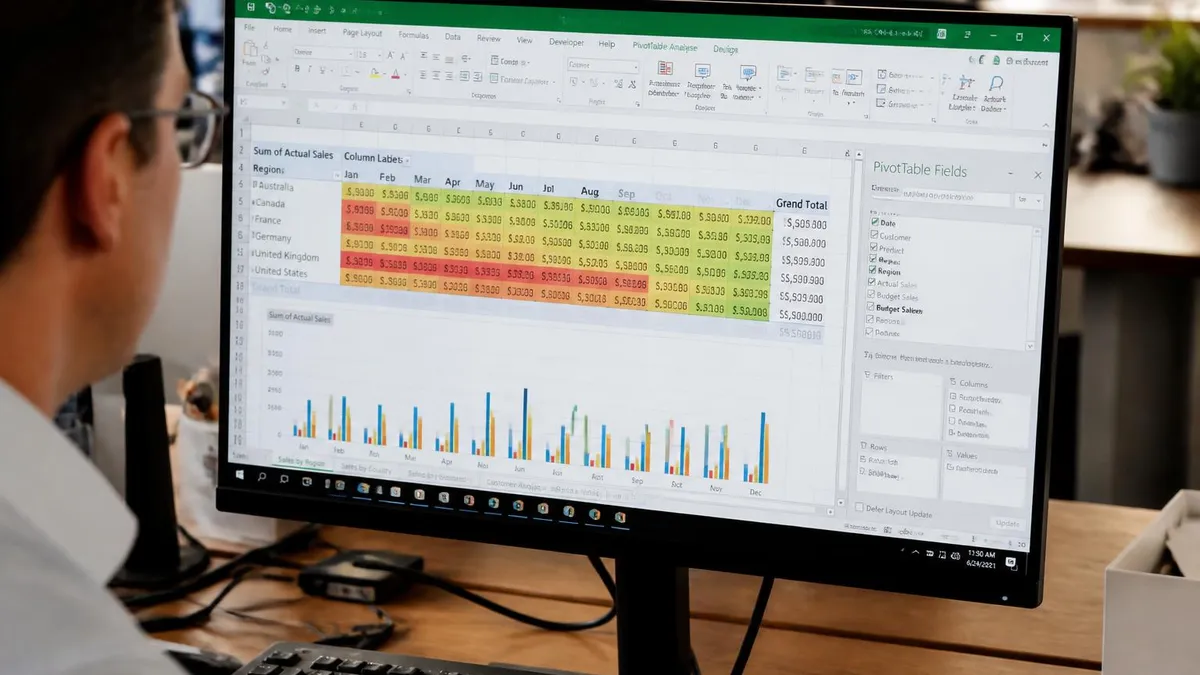
Word documents frequently embed non-breaking spaces (ASCII 160), smart quotes, and soft returns that are invisible to the eye but break Excel formulas. After any doc-to-excel conversion, run a Find & Replace (Ctrl+H) and use the CLEAN and TRIM functions on all text columns to eliminate these hidden characters before building formulas or running data validation. Skipping this step is the single most common cause of VLOOKUP returning #N/A errors on data that visually appears to match.
Common mistakes in doc-to-excel conversion often trace back to the same root causes: insufficient source document preparation, choosing the wrong tool for the file type, and skipping the post-import data quality audit. The most frequent error is failing to standardize date formats before import. Excel stores dates as serial numbers internally, and when a text string like "July 4, 2024" imports as plain text rather than a true date, every date-based formula — including SUMIFS, AVERAGEIFS, and pivot table date grouping — will fail silently, returning incorrect results without any visible error flag to alert you.
Another pervasive problem is the mixed data type column, where numeric and text values coexist in the same column because the source document was inconsistently formatted. This happens when some rows in a Word table contain actual numbers (85, 120, 344) while other rows contain written descriptions ("Not applicable", "See notes"). Excel will default the entire column to text in this scenario, which means SUM and AVERAGE formulas return zero. The fix is to create a helper column using =ISNUMBER(VALUE(A2)) to identify which cells can be converted, then use Find & Replace to standardize or remove the text entries.
Duplicate rows are another post-import hazard, especially when a long Word document is converted in multiple passes or when two slightly different versions of the same source file are merged. Excel's Remove Duplicates feature (Data → Remove Duplicates) handles straightforward exact duplicates, but fuzzy duplicates — where the same record appears twice with minor spelling differences or extra spaces — require a more sophisticated approach using COUNTIFS or fuzzy matching add-ins like Fuzzy Lookup from Microsoft's own free add-in library.
Column ordering issues arise when the source document arranges fields in a different order than your target Excel template. This is particularly common when converting forms or structured questionnaires. The fastest fix is to use Excel's built-in column reordering (select a column header and drag) or to write a simple mapping row that uses INDEX/MATCH formulas to pull each source column into the correct target column position. Documenting the mapping logic in a separate sheet helps future team members understand why columns are ordered as they are in the final workbook.
Encoding problems are a less obvious but equally frustrating conversion error. When a Word document contains characters from non-English alphabets — accented French vowels, German umlauts, Spanish tildes, or Cyrillic script — the export process sometimes replaces them with garbled characters or question marks. This occurs when the conversion tool defaults to ASCII encoding rather than UTF-8. Always specify UTF-8 encoding explicitly in your export settings, and verify character integrity by scanning the first few rows of imported text for unexpected symbols before proceeding with analysis.
Formula dependency errors can cascade through a converted workbook when cells that should contain values are inadvertently formatted as text and used as inputs to arithmetic formulas. The VALUE() function converts text representations of numbers into true numeric values, and wrapping your VLOOKUP references in VALUE() is a quick defensive measure against this class of error. It is also good practice to lock formula-containing cells (Format Cells → Protection → Locked) and protect the sheet before distributing converted workbooks, preventing collaborators from accidentally overwriting formula cells with raw values.
Finally, one of the most overlooked best practices in the entire doc-to-excel workflow is maintaining a raw data sheet that preserves the original imported values untouched, alongside a cleaned data sheet where all transformations have been applied. This separation allows you to quickly identify whether an anomaly in your analysis stems from the original source document or from a cleaning step you applied. It is the data equivalent of keeping a paper trail, and it has saved countless analysts hours of reverse-engineering when a stakeholder questions a number weeks after the initial conversion was completed.
Building a repeatable doc-to-excel conversion system pays compounding dividends over time. The first time you convert a specific report type, you invest significant effort in understanding the document structure, choosing the right tool, mapping columns, and cleaning the output. The second time, that effort drops by more than half because you already have a template, a checklist, and a documented workflow. By the third or fourth iteration, the process can often be reduced to a Power Query refresh that takes under a minute, delivering the same quality of output that once required hours of manual work.
Practice and familiarity with Excel's function library are what separate casual users from genuine power users. Committing time to practice questions — the kind you find on certification prep platforms — accelerates skill acquisition dramatically compared to learning only through on-the-job trial and error. Regular practice with VLOOKUP, SUMIFS, INDEX/MATCH, and data validation scenarios builds the muscle memory needed to recognize the right tool for each post-conversion challenge without stopping to look up syntax every time.
The concept of inner excellence, popularized in performance coaching and in the inner excellence book by former pro athlete Jim Murphy, applies surprisingly well to Excel skill development. The book argues that elite performance comes from internal clarity, focus under pressure, and a commitment to process over outcomes. Translating this to spreadsheet work means approaching each conversion task with a defined process, resisting the urge to cut corners in the cleaning phase, and measuring your accuracy rather than just your speed. Users who track their own error rates improve faster than those who simply work more hours.
Keyboard shortcuts are a high-leverage way to accelerate every phase of the conversion workflow. Ctrl+T formats a range as an Excel Table. Ctrl+Shift+L toggles filters. Alt+E+S opens Paste Special for pasting values only — essential after any copy operation where you want to strip formulas or formatting from the source. F2 puts the active cell into edit mode, and Ctrl+Enter fills all selected cells with the same value simultaneously, which is invaluable when you need to populate a new column across thousands of imported rows with a single default value.
Excel certifications from Microsoft — the MO-200 (Excel Associate) and MO-201 (Excel Expert) exams — validate the exact skills required for professional-grade document conversion work. Preparing for these exams using structured practice tests covers all the core conversion-relevant topics: data imports, Power Query, VLOOKUP, data validation, and workbook protection. Candidates who pass these exams demonstrate to employers that they can handle complex data workflows reliably and independently, which is a meaningful differentiator in data-intensive roles.
This real-world pattern repeats across virtually every industry: hospitality, healthcare, legal, manufacturing, and government all generate document-based records that analysts must regularly migrate into spreadsheet systems for reporting and decision support.
In summary, the doc-to-excel conversion skill is not a single technique but a layered competency that combines document analysis, tool selection, data cleaning, formula application, and quality assurance. Every layer you master multiplies your effectiveness as an analyst. The students and professionals who invest in building this competency systematically — rather than muddling through each conversion as a one-off crisis — consistently produce more accurate reports, waste less time on rework, and build a reputation for reliability that advances their careers far faster than technical knowledge alone ever could.
Excel Questions and Answers

Excel to PDF: 5 Ways to Convert Your Spreadsheet

Excel COUNTA Function — Complete Guide (2026)

How to Create Hyperlinks in Excel: The Complete 2026 Guide to Linking Cells, Sheets, Files, and URLs

How to Use SUMIFS in Excel: The Complete Guide to Multi-Criteria Summing

Excel Data Validation: How to Restrict Input, Create Drop-Downs, and Prevent Errors
About the Author

Business Consultant & Professional Certification Advisor
Wharton School, University of PennsylvaniaKatherine Lee earned her MBA from the Wharton School at the University of Pennsylvania and holds CPA, PHR, and PMP certifications. With a background spanning corporate finance, human resources, and project management, she has coached professionals preparing for CPA, CMA, PHR/SPHR, PMP, and financial services licensing exams.