
How to Create a Chart in Excel: The Complete 2026 September Beginner-to-Pro Guide
🗨️ Learn how to create a chart in Excel step by step. Master chart excel basics, types, formatting, and pro tips with examples and free practice quizzes.

Learning to build a chart excel users can read at a glance is one of the most valuable spreadsheet skills you can develop. A well-made chart turns a cluttered grid of numbers into a clear visual story that managers, teachers, and clients understand in seconds. Whether you track monthly sales, test scores, or a personal budget, the ability to convert raw data into a clean line, bar, or pie chart separates confident Excel users from people who simply type numbers into cells.
The good news is that creating a chart in Excel is far easier than most beginners expect. Modern versions of Excel include a Recommended Charts feature that analyzes your selected data and suggests the best visual format automatically. You highlight your range, click Insert, and Excel does the heavy lifting. From there you can refine colors, titles, axis labels, and legends until the chart matches your brand or report style. The entire process often takes less than two minutes.
This guide walks you through every step in plain English, with concrete numbers and real examples you can follow along with. We cover the most common chart types, when to use each one, and the formatting tricks that make your visuals look professional rather than amateur. You will also learn how charts connect to other core skills, so if you ever need to create a chart in excel for a loan model or budget forecast, you will already know the foundation.
Charts matter because the human brain processes images roughly sixty thousand times faster than text. A spreadsheet with two hundred rows of figures forces your audience to scan, calculate, and compare manually. A single bar chart shows the same comparison instantly. That speed advantage is why nearly every business dashboard, report card, and scientific paper leans heavily on visual data rather than endless tables of digits.
Excel supports more than a dozen native chart families, including column, bar, line, pie, area, scatter, combo, and modern types like treemap and sunburst. Each family answers a different question. Line charts reveal trends over time, pie charts show parts of a whole, and scatter plots expose relationships between two variables. Choosing the wrong type can mislead readers, so understanding the purpose of each chart is just as important as knowing the clicks required to build it.
By the end of this article you will know how to select data correctly, insert the right chart, customize every visual element, and avoid the common mistakes that make charts confusing or inaccurate. We have also included free practice quizzes throughout so you can test your knowledge as you go. Excel charts reward practice, and the more you experiment with your own data, the faster these techniques become second nature in your daily workflow at work.
Keep in mind that chart skills build on broader Excel fluency. Knowing how to merge cells in excel, freeze a row, or use functions like vlookup excel makes chart preparation smoother because your source data stays clean and organized. We will reference those neighboring skills where they help, but the central focus stays firmly on producing accurate, attractive charts that communicate your message clearly to any audience you face.
Excel Charts by the Numbers

How to Create a Chart in Excel Step by Step
Organize Your Data
Select the Range
Open the Insert Tab
Choose the Chart Type
Customize and Label
Save and Share
Choosing the right chart type is where good visuals begin. Excel offers more than seventeen built-in styles, but most everyday tasks rely on just five: column, bar, line, pie, and scatter. Each answers a specific question. If you ask the wrong question with the wrong chart, even perfect data will confuse your audience. Spending thirty seconds to match the chart to your message saves far more time than any amount of later formatting and recoloring ever could.
Column and bar charts compare values across categories. A column chart stacks bars vertically and works beautifully for monthly revenue, regional sales, or survey counts. A bar chart simply rotates those columns sideways, which helps when category names are long, such as full department titles. Use these when your goal is to say one item is bigger or smaller than another, and when you have roughly three to fifteen distinct categories to compare side by side.
Line charts are the undisputed champions of time-series data. Plotting daily website traffic, quarterly profit, or yearly temperature across a continuous timeline reveals trends, peaks, and dips that a table hides. The connected line guides the eye naturally from left to right, making upward or downward momentum obvious. When you have dates on one axis and a measured value on the other, the line chart is almost always your strongest and clearest possible choice.
Pie charts show parts of a whole, such as market share or budget allocation. They work best with a small number of slices, ideally five or fewer, because too many wedges become impossible to read. A common mistake is forcing a pie chart onto data that does not sum to a meaningful total. If your categories do not combine into one hundred percent of something, a column chart almost always communicates the comparison more honestly and accurately.
Scatter plots, sometimes called XY charts, reveal relationships between two numeric variables. Plotting advertising spend against sales, or study hours against test scores, shows whether the two move together. A tight upward cluster suggests strong correlation, while a random scatter suggests none. Scientists, analysts, and students rely on this chart to spot patterns that summary numbers like averages completely conceal from view, which makes it genuinely powerful for real discovery.
Combo charts layer two chart types on one canvas, such as columns for revenue and a line for profit margin. They shine when two related metrics use very different scales, because a secondary vertical axis keeps both readable. Excel also includes specialty types like area, radar, treemap, and waterfall for advanced needs. Beginners rarely need these, but knowing they exist means you can reach for the perfect tool when an unusual dataset demands it from you.
When you prepare data for any chart, clean source cells matter enormously. The same discipline you use to build any chart for a financial dashboard applies everywhere: consistent headers, no merged cells inside the range, and no stray text in number columns. A few minutes organizing your spreadsheet before you click Insert produces charts that update smoothly and never throw confusing errors when your underlying numbers change later on.
Formatting Charts and Skills Like How to Merge Cells in Excel
A chart without a clear title forces readers to guess what they are looking at. Click the chart, open the Chart Elements button, and enable Chart Title, Axis Titles, and Data Labels. Type a descriptive title such as Q1 Sales by Region rather than the generic Chart 1 that Excel inserts by default for every new visual you create on your worksheet.
Axis titles tell readers what each direction measures, like Month on the horizontal axis and Dollars on the vertical. Data labels print the exact value on top of each bar or point, which is helpful when precision matters more than the overall shape. Clean labeling is a habit that pairs well with knowing how to merge cells in excel for tidy header rows above your source data range.
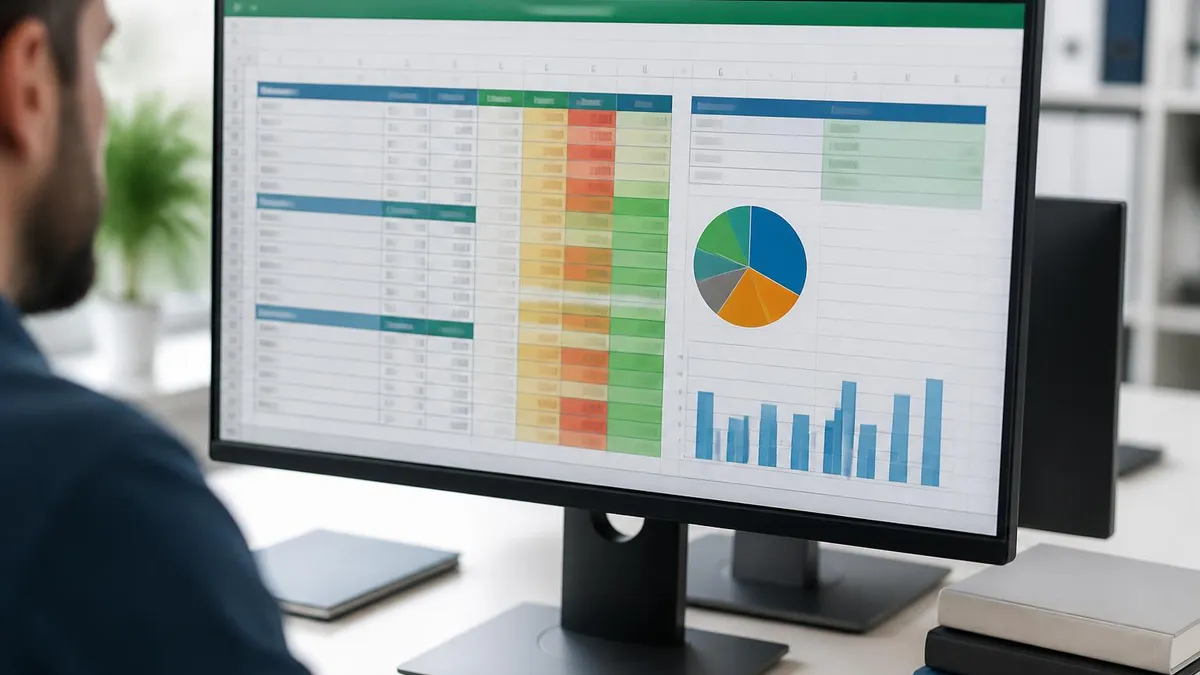
Should You Use Excel Charts for Data Visualization?
- +Charts build in under two minutes with Recommended Charts
- +Visuals are understood roughly 60,000 times faster than tables
- +Charts update automatically when source data changes
- +Seventeen-plus chart types cover almost every data scenario
- +Charts copy cleanly into Word, PowerPoint, and email
- +No extra software or cost beyond Excel itself is required
- +Deep formatting control produces presentation-ready visuals
- −Wrong chart type can mislead or confuse your audience
- −Pie charts with many slices become unreadable quickly
- −Very large datasets can slow Excel and clutter the chart
- −Default styles look generic without manual customization
- −Merged cells inside source data break chart ranges
- −3D effects often distort perception of the real values
Chart Excel Creation Checklist
- ✓Organize data in clean columns and rows with clear headers.
- ✓Remove blank rows and stray text from your chart range.
- ✓Select the full data range including category labels.
- ✓Open the Insert tab and review Recommended Charts.
- ✓Choose a chart type that matches your data story.
- ✓Add a descriptive chart title, not the default name.
- ✓Label both axes with units like dollars or months.
- ✓Limit colors to three or four for visual clarity.
- ✓Add data labels when exact values matter to readers.
- ✓Save the workbook and test that the chart updates correctly.
Press F11 to create a chart instantly
Select your data range and press the F11 key to generate a full-size chart on its own dedicated sheet in a single keystroke. For a chart embedded in the current worksheet instead, press Alt + F1. These shortcuts are the fastest way to visualize data without ever touching the ribbon.
Once your chart exists, the real power of Excel appears: charts stay linked to their source data. Change a number in a cell, and the corresponding bar, line, or slice instantly redraws to match. This live connection means you never rebuild a chart when figures update. A monthly sales report can use the same chart year after year, refreshing automatically each time you paste new numbers into the underlying range that feeds it directly.
To edit an existing chart, click it once to reveal the Chart Design and Format tabs on the ribbon. Use Change Chart Type to swap a column chart for a line chart without losing your data selection. Use Select Data to add a new series, remove an old one, or swap which values appear on each axis. These controls let you reshape a chart completely in seconds rather than starting over from a blank canvas every time.
Adding a new data series is common as projects grow. Suppose you charted 2024 revenue and now want 2025 alongside it. Open Select Data, click Add, point to the new column, and Excel places a second set of bars right next to the first. The legend updates automatically. This ability to layer comparisons is exactly why charts beat static images for any report that evolves month over month throughout the year.
Dynamic charts take this further by using Excel Tables or named ranges that expand automatically. Convert your data to a Table with Ctrl + T, then build the chart from it. When you type a new row beneath the Table, it grows, and the chart absorbs the new data without any manual range editing. This is the secret behind dashboards that simply keep working as fresh data arrives week after week without fuss.
Sparklines offer a compact alternative to full charts. These tiny in-cell line, column, or win-loss graphs fit inside a single cell beside your numbers. They are perfect for tables where you want a quick trend indicator next to each row, such as showing each salesperson's twelve-month trajectory in one small column. Find them on the Insert tab in the Sparklines group, and they update with your data just like full charts do.
Filtering also interacts with charts in useful ways. When you apply a filter to a Table that feeds a chart, the chart can update to show only visible rows, letting you spotlight a single region or date range on demand. Combining filters, slicers, and charts creates interactive reports where a reader clicks a button and the visual instantly reflects their choice, turning a static spreadsheet into a genuinely interactive analytical tool for anyone.
Keeping source data protected matters once a chart becomes important. Accidental edits to the feeding cells can silently distort a chart that decision-makers trust. Many analysts lock the data range and only allow input in designated cells, a discipline closely related to skills like how to freeze a row in excel for navigation. Protecting your inputs ensures the chart always tells the true story your data actually supports for every reader.

Three-dimensional charts may look impressive, but the perspective angle distorts how readers judge bar heights and slice sizes, leading to inaccurate conclusions. Likewise, starting a vertical axis at a number other than zero can exaggerate small differences dramatically. Keep axes honest and charts flat so your data tells the truth rather than a visually inflated version of it.
Even experienced users make chart mistakes that quietly weaken their reports. The most frequent error is choosing a chart type that fights the data. A pie chart with ten slices, a line chart for unrelated categories, or a 3D column chart that distorts heights all confuse rather than clarify. Before you click Insert, pause and ask one simple question: what single message do I want this chart to deliver to my reader right now?
Another common pitfall is overcrowding. Stuffing six data series, a busy background, gridlines, data labels, and a giant legend onto one small chart overwhelms the eye. Professional charts embrace white space. Remove every element that does not earn its place. If a gridline, border, or label is not helping the reader understand the data faster, delete it. Restraint almost always produces a cleaner, more persuasive visual than decoration ever manages to do.
Inconsistent formatting across a report also undermines credibility. If one chart uses blue for sales and the next uses green for the same metric, readers must relearn the color code on every page. Establish a simple color system early and apply it everywhere. The same consistency you would bring to formulas like vlookup excel, where structure prevents errors, applies to visual design across an entire workbook or presentation deck you build.
Forgetting to label units is a subtle but damaging mistake. A chart showing the number 45 means nothing without context. Is that 45 dollars, 45 percent, or 45 thousand units? Always add axis titles and, where helpful, a note clarifying the scale. Readers should never have to guess what your numbers represent. Clear labeling is the difference between a chart that truly informs and a chart that merely decorates the page nicely.
Ignoring your audience is the final big trap. A chart for a technical analyst can include scatter plots and trendlines, but the same data shown to executives might need a simple, bold column chart with one clear takeaway. Match the complexity of your visual to the knowledge and time of the people reading it. The best chart is the one your specific audience understands instantly without any explanation from you.
On the positive side, a few pro habits elevate every chart you build. Use the F11 and Alt + F1 shortcuts to work faster. Build from Excel Tables so charts grow automatically. Save a favorite formatted chart as a template by right-clicking and choosing Save as Template, then apply it to future charts for instant consistency. These small workflow upgrades compound over time into noticeably more professional and efficient reporting across your whole team.
Finally, practice with real data you care about. Chart your own budget, fitness log, or business metrics, and the techniques in this guide become permanent. Pair chart skills with neighboring abilities such as how to merge cells in excel for clean headers and how to create a drop down list in excel for consistent inputs. Together these skills make you the person colleagues turn to whenever data needs to become a clear, convincing visual for an audience.
To turn chart knowledge into lasting skill, build a short practice routine. Open a blank workbook and recreate each chart type from memory: a column chart for monthly sales, a line chart for a trend, a pie chart for budget shares, and a scatter plot for two related variables. Repeating this drill weekly cements the muscle memory so that during a real deadline you build the right chart instantly without second-guessing which buttons to press at all.
Keep a personal cheat sheet of the shortcuts that save the most time. F11 creates a chart sheet, Alt + F1 embeds a chart, Ctrl + T builds a Table for dynamic ranges, and the Chart Elements plus button toggles titles, labels, and legends. Taping these four reminders near your monitor for a week is usually enough to make them automatic. Speed in Excel comes from shortcuts becoming reflexes rather than slow menu searches every single time.
When you prepare for an exam or job assessment, focus on the why behind each chart, not just the clicks. Interviewers and tests often ask which chart suits a given dataset, why pie charts fail with many categories, or how to handle two metrics on different scales. Understanding purpose lets you reason through any question, even one phrased in a way you have never seen before anywhere in your study materials.
Use clean, realistic sample data when you practice. Download a free dataset of monthly weather, stock prices, or population figures, then visualize it several ways. Compare how a line chart versus a column chart changes the story the same numbers tell. This habit trains your judgment about chart selection, which is the skill that separates people who merely operate Excel from those who genuinely communicate with it really well.
Do not neglect the supporting skills that make charting smooth. Practice how to freeze a row in excel so your headers stay visible in long datasets, and how to create a drop down list in excel so your inputs stay consistent and chart-ready. A chart is only as trustworthy as the data behind it, and these organizational skills keep that data tidy, predictable, and free of the small errors that quietly corrupt visuals over time.
Finally, simulate the pressure of a real test by setting a timer. Give yourself ninety seconds to select data, insert the correct chart, add a title, and label both axes. Beating the clock builds the confidence you need when a manager asks for a chart on the spot during a meeting. The free practice quizzes on this page mimic that pressure with timed, multiple-choice questions covering charts, formulas, and functions for you.
Remember that mastery is incremental. Nobody builds perfect dashboards on day one. Each chart you create teaches you something about spacing, color, and clarity. Review your old charts occasionally and ask how you would improve them now. That reflective habit, combined with steady practice and the quizzes below, will take you from nervous beginner to the confident go-to Excel expert in your office or classroom faster than you might expect.
Excel Questions and Answers

Excel Finance Functions Guide With PMT, NPV, IRR and Loan Models

How to Make a Header in Excel: The Complete Step-by-Step Guide

Lock Formulas in Excel: The Complete 2026 Guide to Protecting Cells, Sheets, and Workbook Calculations

Adobe Acrobat Document PDF to Excel Converter: Complete Guide to Converting PDFs Into Spreadsheets in 2026

Cell References in Excel: The Complete Guide to Relative, Absolute, and Mixed References in 2026
About the Author

Business Consultant & Professional Certification Advisor
Wharton School, University of PennsylvaniaKatherine Lee earned her MBA from the Wharton School at the University of Pennsylvania and holds CPA, PHR, and PMP certifications. With a background spanning corporate finance, human resources, and project management, she has coached professionals preparing for CPA, CMA, PHR/SPHR, PMP, and financial services licensing exams.