
ANOVA in Excel: Run Single & Two-Factor Tests Step-by-Step 2026 October
🏆 Run ANOVA by Excel with the Data Analysis ToolPak. Single Factor, Two-Factor With/Without Replication, F-stat, P-value, and worked examples.

You ran a t-test once and it told you whether two group means differ. Useful — but real experiments rarely stop at two groups. The moment you add a third sample, the t-test breaks down. ANOVA — Analysis of Variance — is the workhorse for comparing means across three or more groups. Fertilizer brands, machine outputs, A/B/C creative variants — anywhere groups meet a continuous outcome, ANOVA shows up.
Excel ships with everything you need, hidden behind a checkbox most users have never clicked. This guide walks the whole path: turning the ToolPak on, picking the right ANOVA flavor, reading SS/df/MS/F/P output, and what to do when a significant result says "something differs" but not which pair. The Excel Data Analysis ToolPak explainer covers the wider toolset.
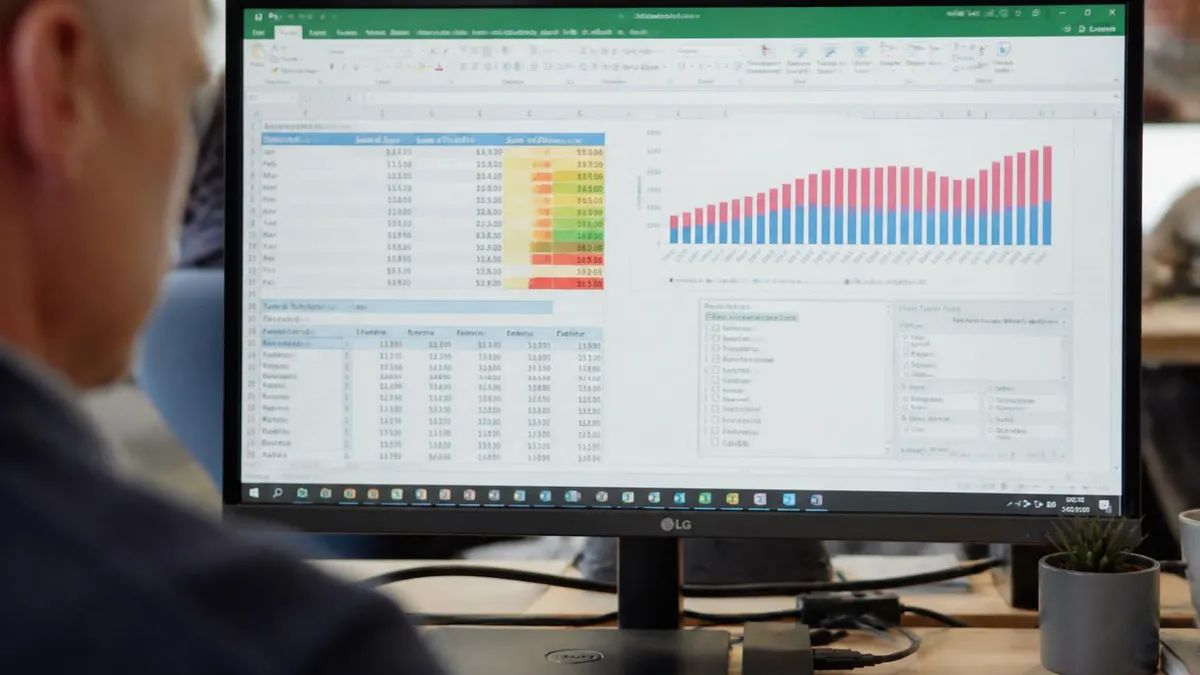
This guide covers all three ANOVA flavors in Excel — Single Factor, Two-Factor With Replication, Two-Factor Without Replication — plus reading SS/df/MS/F/P output, post-hoc tests when ANOVA is significant, effect size with eta-squared, the three assumptions you must check, and formula workarounds when the ToolPak isn't available. Worked example: three fertilizer brands tested on crop yield.
ANOVA stands for Analysis of Variance. The name throws people off — you're comparing means, but the math partitions variance into two buckets: variance between groups, and variance within groups. The ratio of those two variances becomes the F-statistic. Large F means group means are spread far apart relative to the noise inside each group. Small F means the differences could be sampling chance.
Why not just run multiple t-tests? Inflated Type I error. Three t-tests at α=0.05 give a 14% chance of a false positive across the family. Six tests? Closer to 26%. ANOVA wraps all comparisons into one omnibus test that holds α=0.05 across the experiment.
The null hypothesis: H₀: μ₁ = μ₂ = μ₃ = … = μₖ — all group means are equal. Alternative: at least one mean differs. Reject H₀ when P drops below alpha or, equivalently, when F exceeds F critical.
ANOVA quick reference numbers
The ANOVA tools live inside the Analysis ToolPak add-in, which Microsoft ships disabled by default. Turning it on takes thirty seconds. Open Excel, click File → Options → Add-ins. Set the Manage dropdown to "Excel Add-ins" and click Go. Tick the box for Analysis ToolPak, then OK.
Head to the Data tab. Far right, you'll see a new Data Analysis button. Click it — a list pops up with about twenty procedures, three starting with "Anova:". Desktop Excel on Windows or Mac only; the web and mobile versions strip these tools. The add Data Analysis ToolPak in Excel guide covers installation troubleshooting.
Quick ToolPak enable
File → Options → Add-ins → set Manage to "Excel Add-ins" → Go → tick Analysis ToolPak → OK. Find the new Data Analysis button on the Data tab. If the option doesn't appear, you're likely on Excel for the web or Mobile — the ToolPak only works on desktop Windows/Mac Excel.
Excel offers three distinct ANOVA procedures, and picking the wrong one wastes the analysis. Quick decision tree: one independent variable with three or more levels? Single Factor. Two independent variables, multiple measurements per combination? Two-Factor With Replication. Two independent variables, exactly one measurement per combination? Two-Factor Without Replication, also called randomized block design.
Single Factor (also "one-way ANOVA") is the most common starting point. Say you're testing three fertilizer brands on tomato yield — fertilizer is the factor, with three levels (A, B, C), and you measure yield from multiple plots per brand. That's textbook Single Factor territory. Two-Factor With Replication enters when you cross two factors, like fertilizer brand AND watering schedule, with several plots per fertilizer-watering combination. Two-Factor Without Replication handles paired or blocked designs — say, four teaching methods tested across five different classroom groups, with one mean per method-class cell.

Three ANOVA procedures in Excel
One independent variable with 3+ levels. Example: three fertilizer brands, six plots each. Compares group means; null = all means equal.
Two factors crossed, multiple observations per cell. Tests main effects AND interaction. Example: drug × gender, five subjects per cell.
Two factors, one observation per cell — randomized block design. No interaction estimable. Example: teaching method × classroom.
Let's run a Single Factor ANOVA end-to-end. Three fertilizer brands tested on six plots each — eighteen observations total. Lay the data out with each fertilizer in its own column, headers in row 1, values in rows 2 through 7. Column A: Fertilizer-X yields. Column B: Fertilizer-Y. Column C: Fertilizer-Z. Values in tons per hectare.
Click Data → Data Analysis → Anova: Single Factor → OK. Input Range = $A$1:$C$7 (include headers). Grouped By: Columns. Tick Labels in first row. Alpha: 0.05 — leave the default unless your field uses a different threshold. Pick an Output Range or send to a new worksheet. Click OK.
Excel produces two tables. The Summary table shows count, sum, average, and variance per group — sanity-check these numbers first. If Fertilizer-X averaged 8.2 tons and Y averaged 12.4 tons, that's already a hint. The ANOVA table below contains the statistical verdict with columns for Source of Variation, SS, df, MS, F, P-value, and F crit, plus two rows for "Between Groups" and "Within Groups" and a Total row.
Look at the P-value first. Below 0.05? Reject H₀ — at least one fertilizer differs significantly. Equivalent check: is F greater than F crit? Same conclusion either way. If P=0.003 and F=8.42 with F crit=3.68, you've got a strong signal. The between-fertilizer variance is too large to chalk up to noise. What you can't say yet: which pair differs. That requires a post-hoc procedure, covered below.
One easy misstep — students often forget to tick "Labels in first row" and Excel treats the header text as data, producing wildly wrong sums. Another: leaving blank cells inside group columns. Excel ignores them, but the count per group changes, so df Within shifts and your F-statistic is no longer apples-to-apples. Keep groups the same size when possible. Unbalanced designs still work but lose statistical power and complicate post-hoc interpretation.
Step-by-step ANOVA workflows
- Lay groups in columns A, B, C with headers in row 1.
- Data → Data Analysis → Anova: Single Factor → OK.
- Input Range: $A$1:$C$7; Grouped By: Columns; tick Labels in first row.
- Alpha: 0.05 (default); pick Output Range or New Worksheet Ply.
- Read P-value first; compare F vs F crit; compute eta-squared.
Two-Factor With Replication crosses two factors and demands multiple observations per cell. Classic setup: factor 1 is treatment (drug A, B, placebo), factor 2 is subject group (men, women), five subjects per drug-by-group cell. The replicates let Excel estimate the interaction effect — the unique magic of two-factor designs.
Data layout: factor 2 labels in column A starting at row 2, replicates stacked vertically. Factor 1 labels across row 1 as column headers. Rows 2–6 are five males on Drug A, B, Placebo in columns B, C, D. Rows 7–11 are females under the same drugs. Run Anova: Two-Factor With Replication, set Rows per sample = 5 (must match exactly). Output gives three F-tests: Sample, Columns, Interaction. Significant interaction means main effects depend on each other — interpret carefully.
Two-Factor Without Replication strips the interaction term because each factor combination has just one observation. Classic case: a randomized block design. Four teaching methods tested across five classroom groups (the blocks), one average exam score per method-class cell — twenty numbers, zero replicates.
Lay out as a 5×4 grid: blocks as row labels in column A, methods as column headers in row 1. Run Anova: Two-Factor Without Replication. Output gives two F-tests: rows (blocks) and columns (methods). The block F-test sanity-checks that blocking reduced variance; the column F-test is your main result. This design assumes no interaction — if you suspect one, switch to With-Replication.

The ANOVA output table looks intimidating until you decode the columns. SS (Sum of Squares) measures total variability in each source. Between-groups SS captures variance explained by group membership; within-groups SS is residual noise. SS Total = SS Between + SS Within.
For Between Groups, df = k − 1. For Within Groups, df = N − k. Three fertilizers with six plots each: df Between = 2, df Within = 15. MS = SS ÷ df. F = MS Between / MS Within — the heart of ANOVA. Under H₀, both MS values estimate the same population variance, so F ≈ 1. When group means actually differ, F grows. F crit is the cutoff from the F-distribution for your alpha; exceed it and reject H₀.
A significant ANOVA tells you that something differs. It refuses to tell you what. To find which specific group pairs drive the result, you run a post-hoc test — and here's where Excel disappoints. None of the standard post-hoc procedures (Tukey HSD, Bonferroni, Scheffé, Dunn's) ship in the ToolPak.
Tukey HSD is the most-used post-hoc when group sizes are equal. The formula compares each pair of means against q × sqrt(MS Within / n), where q comes from the Studentized Range distribution. Pull q from published tables, compute differences in Excel cells — workable but clunky.
Bonferroni is the quickest workaround in Excel: divide α (0.05) by the number of pairwise comparisons (3 groups = 3 pairs, so α_pair = 0.0167) and run individual t-tests at that adjusted threshold. Conservative, but quick. For serious post-hoc work, drop the data into R: TukeyHSD(aov(yield ~ fertilizer, data=df)) returns every pairwise comparison with adjusted P-values in one line. SPSS has it under Analyze → Compare Means → One-Way ANOVA → Post Hoc.
The chi-square test in Excel guide demonstrates a similar Excel-to-R handoff pattern when the built-in tools run out. Picking a post-hoc matters: Tukey when groups are balanced, Games-Howell when variances differ, Dunnett when comparing to a control. None come free with Excel — but the data prep stays in Excel, the analysis moves to R.
ANOVA pre-flight checklist
- ✓Three or more groups (otherwise use t-test)
- ✓Continuous numeric outcome variable
- ✓Independent observations (no repeated measures unless using RM-ANOVA)
- ✓Approximate normality within each group (check skew/kurtosis or Q-Q)
- ✓Homogeneous variances (largest variance < 4× smallest)
- ✓Analysis ToolPak enabled in Excel (File → Options → Add-ins)
- ✓Alpha threshold chosen ahead of analysis (typically 0.05)
- ✓Plan for post-hoc test if ANOVA returns significant (Tukey, Bonferroni)
P-values tell you whether an effect exists. They say nothing about how large it is. With huge samples even trivial differences turn "significant" — yet they might not matter practically. Effect size fills that gap.
For ANOVA the standard effect size is eta-squared (η²), computed as η² = SS Between / SS Total. It's the proportion of total variability explained by group membership. Rough thumb rules: 0.01 is small, 0.06 medium, 0.14 large. So if your fertilizer ANOVA gave SS Between = 42.3 and SS Total = 89.7, η² = 0.47 — almost half the variability is explained by brand. That's a big effect, not just a "statistically significant" one. Always report η² alongside the F-statistic and P-value. Journals increasingly require it, and decision-makers care more about magnitude than statistical sign.
ANOVA isn't assumption-free. Three checks should run before you trust the P-value: normality, homogeneity of variances, and independence of observations. Normality means residuals within each group follow a roughly normal distribution. Test with Shapiro-Wilk (P>0.05 means you fail to reject normality, which is what you want). Excel doesn't have Shapiro-Wilk built-in — use =SKEW() and =KURT() or a Q-Q plot.
ANOVA is reasonably strong to mild non-normality, especially with n ≥ 30 per group, thanks to the Central Limit Theorem. Severe skew or heavy tails warrant a non-parametric alternative like the Kruskal-Wallis test. Homogeneity of variances means group variances should be similar. Test with Levene's or Bartlett's — neither in Excel. As a rough check, compute variance per group with =VAR.S() and apply the rule of thumb: if the largest variance is more than four times the smallest, assume violation.
When variances differ wildly, switch to Welch's ANOVA — also not in Excel's ToolPak, but available in R, JASP, and SPSS. Independence is design-level: ensure observations don't share latent dependencies like repeated measurements on the same subject. Violated independence is the most damaging assumption breach — no transformation fixes it. Plan the design carefully up front so the independence assumption holds by construction.
Excel ANOVA vs dedicated stats software
- + —
- + —
- + —
- + —
- + —
- − —
- − —
- − —
- − —
- − —
- − —
Use a t-test for exactly two groups. Use ANOVA for three or more. Multiple t-tests across three groups inflate the Type I error rate to 14% at α=0.05. ANOVA with two groups produces the same conclusion as a t-test — mathematically, F = t². The P-value in Excel reference covers the t-test side.
No ToolPak? Excel can do Single Factor ANOVA via raw formulas. Key functions: =F.TEST(array1, array2) for variance equality. =FDIST(x, df1, df2) gives the right-tail P-value of an F-statistic. =F.INV.RT(alpha, df1, df2) returns the critical F-value.
Manual recipe: grand mean across all observations. SS Between = Σ n_i × (mean_i − grand_mean)². SS Within = Σ (obs − group_mean)². df Between = k − 1, df Within = N − k. F = (SS Between / df Between) ÷ (SS Within / df Within). P-value = FDIST(F, df_between, df_within). Tedious to set up — brilliant once built.
ANOVA isn't a classroom curiosity. A/B/C testing: three landing page variants, conversion rates per visitor, Single Factor ANOVA tells you whether they differ. Quality control: three production machines turning out 50 widgets per shift — ANOVA flags drift. Pharmaceutical trials: drug dose crossed with patient subgroup, looking for interaction effects that change recommended dosing.
Pair ANOVA with regression analysis in Excel for the full general-linear-model picture — mathematically equivalent under the hood, just framed differently. Regression uses continuous predictors; ANOVA uses categorical ones. The standard deviation formula in Excel feeds into variance calculations both rely on.
Excel handles routine ANOVA cleanly. The advanced corner — repeated-measures ANOVA, mixed-effects, MANOVA, ANCOVA, Welch's ANOVA for unequal variances — lives outside the ToolPak. R is free and standard: aov() for basic, ezANOVA for repeated measures, lme4 for mixed-effects. JASP and jamovi are free GUI alternatives to SPSS with Bayesian ANOVA built-in.
Master Single Factor ANOVA first. It covers the bulk of analyses you'll ever do — three or more groups, one independent variable, comparing means. Layer in Two-Factor With Replication when crossed designs appear and you care about interactions. Reach for Two-Factor Without Replication when budget forces single observations per cell.
The skill that separates competent ANOVA users from sloppy ones isn't running the test — Excel does that in three clicks. It's reading the output: knowing F crit is a threshold from the F-distribution, not an option you set. Understanding why P=0.04 doesn't mean "96% probability the effect is real" but rather "if H₀ were true, you'd see data this extreme 4% of the time." Checking assumptions before trusting conclusions. Computing effect size so your report says something about magnitude rather than just a yes/no significance verdict.
The ToolPak is a stepping stone. Routine designs flow through it cleanly. When experiments grow — repeated measures, mixed effects, complex post-hoc — graduate to R or JASP. Treat Excel as the lab notebook, not the final lab. The multiple regression analysis in Excel guide bridges the regression side of the same general linear framework.
One closing tip: always document your design choices alongside the output. Which ANOVA flavor you picked, what alpha you used, how big each group was, whether assumptions held, and which post-hoc you ran. The numbers are reproducible; the interpretation is not. A reviewer or future-you should be able to retrace the analysis from the spreadsheet alone.
Sample Excel Practice Questions
Try these questions from our free Excel practice tests. The correct answer and an explanation follow each question.
Which chart type best shows composition of a whole at a single point in time?
- A. Line chart
- B. Pie chart
- C. Scatter plot
- D. Histogram
Answer: B. Pie chart
Pie charts show how parts contribute to a whole using proportional slices.
What visualization shows distribution of a single continuous variable?
- A. Scatter chart
- B. Histogram
- C. Radar chart
- D. Bubble chart
Answer: B. Histogram
Histograms group continuous data into bins and show frequency as bar height.
What is the purpose of the Destination box on the final step of the Text to Columns wizard?
- A. To choose which worksheet to delete
- B. To specify where the split data should be placed
- C. To set the print area
- D. To name the resulting table
Answer: B. To specify where the split data should be placed
Destination controls the top-left cell where the separated columns are written.
How does INDEX work with a single range?
- A. Indexes alphabetically
- B. Returns the value at a specified row position
- C. Creates an index of values
- D. Returns the cell address
Answer: B. Returns the value at a specified row position
INDEX returns the value at a given row and optional column position within a range.
Excel Questions and Answers
About the Author

Business Consultant & Professional Certification Advisor
Wharton School, University of PennsylvaniaKatherine Lee earned her MBA from the Wharton School at the University of Pennsylvania and holds CPA, PHR, and PMP certifications. With a background spanning corporate finance, human resources, and project management, she has coached professionals preparing for CPA, CMA, PHR/SPHR, PMP, and financial services licensing exams.