

DJ Practice Test
Updated for September 2026DJ Drops & Tags Questions and Answers
It’s a portion of a song where the rhythm abruptly shifts or where, following a build-up and a break, a bass line is audible. Try our podcast production practice test.
- Launch Serato DJ Pro (with hardware connected). Your computer, controller, turntables, mixer, and Serato DJ should all be turned on.
- Start up the Sampler. Click the air horn indicated in the photo above by a star. When you click on it, the screen in the image above will appear on your computer. Where you should drag your DJ drop files is into the boxes that have already appeared. Eight sample boxes—DJ drop one and DJ drop 2 in the image above—and four banks are present (for a total of 32 samples). These can be used to add effects, DJ drops, loops, DJ samples, etc.
- Drag and Drop Your DJ Drops. Find your DJ Drops right now. Remember, Your DJ Drops should be titled “DJ Show Intro 3,” for example. Creating a record crate or dropping a file for your samples and labeling them drops, samples, etc., is also beneficial. You will know exactly where to keep and locate them as a result. Drag the desired drips or samples into the available boxes after finding them. Up to 8 can be added per sample bank. Additionally, you can plan your DJ drops utilizing the banks. For instance, Bank A could have all your festival DJ drops, whereas Bank B might contain all your radio program drops.
- Access Your DJ Drops. After dragging your drops and samples into each region, you need to figure out how to access your banks. Hit the “sampler” button on your mixer or controller to start. After pressing it, you’ll see Banks A, B, C, and D. To reach the bank where your favorite samples are stored, click on it. The Pioneer DJM-S9 mixer was used to take the photographs up top. For most mixers/controllers, the top row controls the first four samples, while the bottom row controls the final four samples.
- Modify DJ Drop Volume. Test your samples now that they have been loaded. You only need to click on the playable pad. Even more, effects such as a stutter can be produced by continuously tapping the sample before allowing it to play. You can adjust its volume by clicking and sliding the slider to the left of the sample. Some controllers offer a sampler volume button to manage the importance of all your samples. You can also change the speed, pitch, sync to the song playing, pitch lock, etc., next to the slider.
- A sound must first be sampled. Think carefully about the audio elements you want to include in your set. The most challenging aspect will be locating the ideal sound because most drops last up to a few seconds. Remember to modify the fall to fit your specific method. Although an explosion might sound nice during hip-hop electro remixes, it would terrify someone listening to mellow downtempo. Additionally, stay away from unpleasant noises that strain human ears.
- Use special effects (SFX) to give your vocals or sample definition. Pay close attention to the broadcasters’ expert drops. Radio producers typically apply the right combination of effects to make a drop sound more exciting. Drops must have good audio quality for a club DJ to understand them above the music. Although the appropriate mix of SFX is quite helpful, too many stacked on top of one another will make the sound muddy and unpleasant. Learn more about muddiness or audio that has suffered from excessive rendering distortion.
- You must wait till the ideal time before becoming low after your DJ drops are ready and finalized. There are several ways you can include DJ drops in your performance. A substantial DJ drop, in conclusion, gives your performance color and personality. On the other side, remember that if you overdo it and annoy them, they might leave or push “next.” Avoid being that obnoxious DJ who incessantly triggers audio samples rather than playing the music. Please think about revising your DJ drops.
- Launch the Audacity. Click the desktop icon twice. Audacity may take a few seconds to load fully. Your most recent working session will start immediately.
- Select “New Session” under “File” on the menu. You can start working on a new session after this is done.
- Connect a set of headphones to your computer’s “headphones in” jack. Connect the PC microphone to the “microphone in” jack if your laptop doesn’t have one. Click
- “New Audio Track”.Double-click the “Audio 1” box and give it an appropriate new name, such as “funny jingle.”
- Import the audio files. “Import Audio” can be chosen by clicking “File.” Search for any audio files you want to use, including sound effects, samples, and music clips. Click on the appropriate audio file once you’ve found it to open it in the Audacity interface. It will instantly start playing on a different audio channel.
- Set the audio on cue. Drag the file to the right to add a delay between the beginning of the clip and the beginning of the track. You get a “run-up” when recording because of this. You can see how long it will take for the audio to begin playing by looking at the time on the horizontal axis, divided into seconds.
- Press the “Record Enable” button to tell Audacity which channel to allocate the new audio by selecting it on the channel strip. It’s the red “R” symbol. Press “Record” and “Play” simultaneously. The audio starts playing as a result. When prepared, use the computer’s built-in microphone to record your contribution to the DJ drop.
- Remove any unnecessary sound from the clip. Select the “Trim” tool by clicking “Tools” and choosing the “Scissors” icon. To remove any noise at the end, place the cursor on the sound wave image’s far right edge and drag it left.
- Blend the DJ drop. If you wish the audio to be balanced, adjust the “Gain” level sliders for each channel. Naturally, the drop will require more balancing the more audio it contains. Any spoken portions should be audible above the sound effects in the mix.
Choose the track(s) from the Music Tag file list from which you want to delete the ID3 tags, then click the appropriate option in the pop-up menu. Select “Remove Tags” from the menu that displays. You’ll see a window that requests your confirmation that you want to remove the tags and understand that doing so will have no chance of being undone.
DJ Practice Test Questions
Prepare for the DJ - Drops exam with our free practice test modules. Each quiz covers key topics to help you pass on your first try.
DJ Basic DJ Drops & Tags
DJ Exam Questions covering Basic DJ Drops & Tags. Master DJ Test concepts for certification prep.
DJ Drop Branding and Customization
Free DJ Practice Test featuring DJ Drop Branding and Customization. Improve your DJ Exam score with mock test prep.
DJ Drop Business and Pricing
DJ Mock Exam on DJ Drop Business and Pricing. DJ Study Guide questions to pass on your first try.
DJ Drop Equipment and Software
DJ Test Prep for DJ Drop Equipment and Software. Practice DJ Quiz questions and boost your score.
DJ Drop Marketing and Promotion
DJ Questions and Answers on DJ Drop Marketing and Promotion. Free DJ practice for exam readiness.
DJ Drop Production Techniques
DJ Mock Test covering DJ Drop Production Techniques. Online DJ Test practice with instant feedback.
DJ Drop Voiceover and Recording
Free DJ Quiz on DJ Drop Voiceover and Recording. DJ Exam prep questions with detailed explanations.
Key Takeaway: DJ certification demonstrates expertise in this field. Most candidates spend 4-8 weeks preparing with practice tests before taking the exam.

How To Create DJ Drops
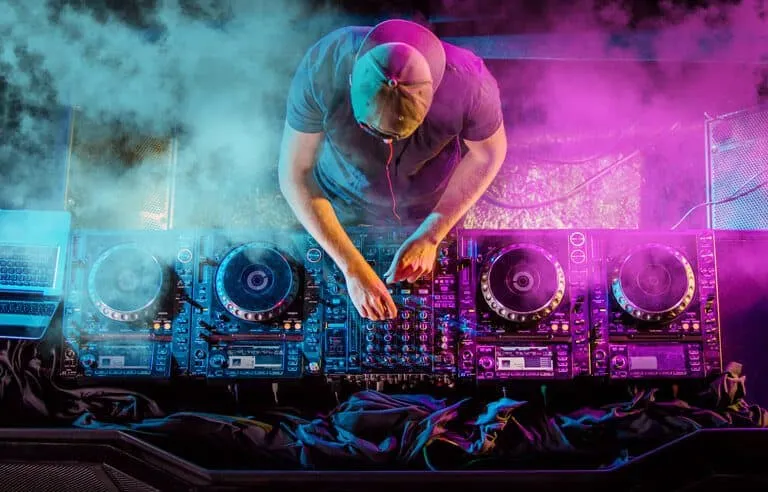
Adding DJ drops and tags to your mixes can enhance your sound. They can help you get hired by clubs and promote your name. They can also help you sell your music.
DJ drops are short voice-over samples that are placed into a mix. They can be inserted at the start of a bar, during a break, or between two tracks. They tell your audience who you are, where they can purchase your music, and who's in the mix.
The best time to use DJ drops is at the beginning of the audio production process. The second best time is toward the middle of a track. They can also be used to highlight specific parts of the mix.
DJ drops are an excellent way to get your audience excited about your music. When your audience is pumped up, you'll be more likely to get hired by a promoter. They'll also be more likely to buy your music.
If you have a DJ controller with a sampler function, you can program DJ drops into your set. You can also use DJ software to play your DJ drops like regular songs.
DJ: Pros and Cons
- +DJ credential is recognized by employers and industry professionals
- +Higher earning potential compared to non-credentialed peers
- +Expanded career opportunities and professional advancement
- +Structured learning path builds comprehensive knowledge
- +Professional development that stays current with industry standards
- −Preparation requires significant time and study commitment
- −Associated costs for exams, materials, and renewal fees
- −Continuing education needed to maintain credentials
- −Competition for advanced positions can be challenging
- −Requirements and standards may vary by state or region
About the Author

Certified Professional Development Expert & Niche Certification Advisor
University of Pennsylvania Graduate School of EducationDr. Alexandra Kim holds a PhD in Professional Studies from the University of Pennsylvania and is a Certified Professional in Learning and Performance (CPLP) and Certified Professional in Talent Development (CPTD). With 17 years of corporate training and professional certification advisory experience, she helps professionals navigate specialized, emerging, and cross-industry certification programs.