
Quiz PowerPoint: Free Practice Questions and How to Build Your Own PowerPoint Quiz
🎯 Quiz PowerPoint skills with free practice questions. Learn how to use PowerPoint, embed video, export to PDF, and design slides like a pro.

A quiz PowerPoint session can mean two very different things, and this guide covers both. Some people want to test their own skills with practice questions on animations, layouts, and exports. Others want to build an interactive quiz inside a deck for a classroom, a team meeting, or a trivia night. Either way, the foundation is the same: you need to know how to use powerpoint confidently, from the ribbon to slide masters, before any quiz format works smoothly.
Why does this matter? PowerPoint remains the default presentation tool in US schools, offices, and certification programs. Employers listing Microsoft Office skills expect more than typing bullet points on a slide. They expect you to apply consistent themes, control transitions, embed media, and export files that open correctly on any device. A short quiz exposes gaps quickly, because it forces you to recall menu locations and settings instead of simply recognizing them while clicking around. That recall is what separates casual users from fast, reliable ones.
Practice questions work better than rereading help articles. When you answer a question about the Animation Pane, you commit to an answer, check it, and remember the correction. Research on retrieval practice consistently shows that testing yourself beats passive review for long-term memory. For PowerPoint, that translates into real speed gains: you stop hunting through tabs and start reaching for Morph, Slide Master, or Reading Order from memory during a live deadline.
This article walks through the full picture. You will see key facts about the software, a step-by-step path for building a quiz deck, and a comparison of quiz methods. We also cover common tasks that appear on tests and in daily work, including exporting a deck to PDF, importing it into Google Slides, embedding video, and citing a slide deck in APA. Each section ends with a pointer to free practice questions so you can check what you learned.
If you are a teacher or trainer, you will find practical formats you can build in an afternoon. Multiple choice with hyperlinks, a Jeopardy-style game board, and timed reveal animations all rely on features included in every modern version. You do not need add-ins or paid software. A single master slide, a handful of shapes, and trigger animations can turn a plain deck into an activity that keeps a room of thirty students engaged from the first question to the last.
If you are a learner preparing for a skills assessment, the goal is different. You want broad coverage of the tools that tests actually probe: formatting, animation effects, slide masters, collaboration, and output options. Our practice sets are organized by topic so you can drill weak areas rather than repeat what you already know. Start with a quick baseline quiz, note which questions you missed, and then study those features directly inside a blank deck until each one feels automatic.
Throughout the guide, we keep examples concrete and US-focused, using Microsoft 365 as the reference version while noting differences for PowerPoint 2019 and 2021. Menu names change slightly between releases, but the underlying logic stays stable. Read the sections in order for a full workflow, or jump through the table of contents to the part you need. By the end, you should be able to quiz PowerPoint skills and build your own quizzes with confidence.
PowerPoint Quizzes by the Numbers

Build Your First Quiz PowerPoint in Six Steps
Set Up the Slide Master
Write the Question Slides
Create Feedback Slides
Link Answers With Hyperlinks
Add Animation and Triggers
Rehearse in Slide Show Mode
Building a Quiz PowerPoint Deck: Core Mechanics
Every interactive quiz in PowerPoint rests on three mechanics: hyperlinks, triggers, and slide order. Hyperlinks let a click on an answer jump to a feedback slide. Triggers let an animation start when a specific shape is clicked, so a green check mark appears without leaving the slide. Slide order, controlled by sections and the Slide Sorter view, keeps everything predictable. Master these three and you can build almost any quiz format without macros or add-ins.
Start with a blank 16:9 deck and set up the Slide Master first. Open View, choose Slide Master, and define fonts, colors, and a background that every question slide will inherit. Use a heading font of at least 32 points and body text near 24 points so answers stay readable from the back of a room. Consistency here saves hours later, because changing one master updates every question slide automatically.
Next, build a question slide. Type the question in the title placeholder, then add four rectangles for the answer choices. Select the first rectangle, press Ctrl+K, choose Place in This Document, and link it to the feedback slide. Repeat for each choice, pointing the wrong answers to a try-again slide and the correct answer to a success slide. Add an Action Button labeled Back that returns players to the question.
For a polished feel, add animation. On the success slide, apply an Entrance effect such as Zoom or Fade to a trophy graphic. On the question slide, use the Animation Pane to set each answer to appear in sequence with a short delay. Triggers, found under Animation, Trigger, On Click Of, let a shape react only when you click a chosen object. Keep durations under one second so the game feels quick.
Quiz decks are popular outside the classroom too. Many teams run trivia during onboarding, holiday parties, or remote meetings, and searches for powerpoint night ideas spike every autumn. Popular formats include picture rounds, name-that-song clips, and category boards. The same hyperlink and trigger techniques apply, so a single template can host a movie round on Monday and a company-history round on Friday with only the content changed.
Scoring is the weak spot of native PowerPoint, because the app does not track points. Most presenters keep a visible scoreboard slide, a whiteboard, or a shared spreadsheet. If you want automation, you can add a VBA macro in a .pptm file, but that raises security prompts on many corporate laptops. For most uses, a manual scoreboard updated between rounds is faster, safer, and easier to explain to a first-time host who has never run a game before.
Finally, rehearse in Slide Show mode, not Normal view. Click every answer, including wrong ones, and confirm each link lands where you expect. Test on the projector or screen share you will actually use, since fonts and resolution can shift. Save a PDF backup of the questions and a copy of the .pptx on a USB drive. A ten-minute dry run catches broken links before an audience does, and it builds your confidence as the host.
How to Use PowerPoint Quiz Formats: Three Approaches
Self-test quizzes are the fastest way to find gaps in your PowerPoint knowledge. Set a timer for fifteen minutes, answer ten questions on animations or slide masters, and score yourself immediately. Because you control the pace, you can retake the same set three days later and measure improvement. This format suits job seekers, students preparing for Microsoft Office assessments, and anyone upgrading from basic slide editing to confident design work.
To get the most from this approach, keep an error log. Write each missed question, the correct answer, and the menu path where you find the feature. Then open a blank deck and perform the task once by hand. Doing the action, not just reading it, builds muscle memory. After two or three rounds, your log becomes a personalized cheat sheet that targets exactly the features you tend to forget.
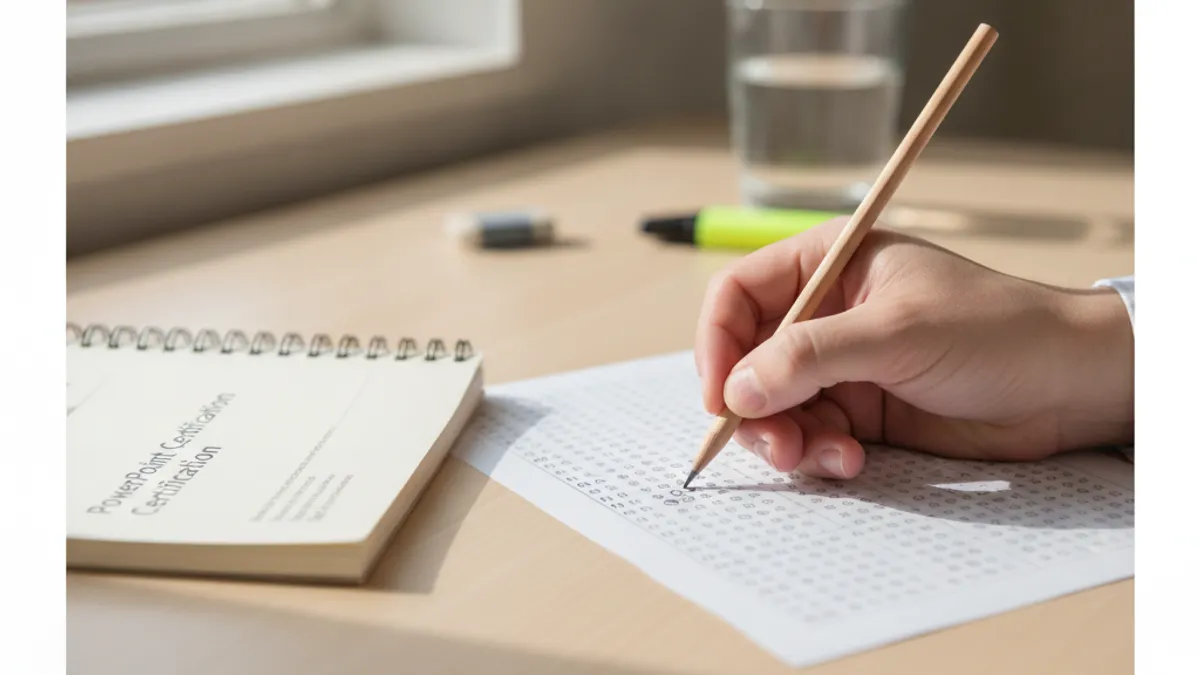
Is a Quiz PowerPoint Better Than a Dedicated Quiz App?
- +Works offline once the file is saved, so no Wi-Fi is needed
- +Uses software most schools and offices already own
- +Full control over design, branding, and question wording
- +Easy to reuse, copy, and edit for new groups or topics
- +Teaches real PowerPoint skills while you build the quiz
- +Exports to PDF for handouts and answer keys
- −No built-in scoring, so points must be tracked by hand
- −Building many linked slides takes longer than using an app
- −Broken hyperlinks are easy to miss without a full rehearsal
- −Results are not collected automatically from participants
- −Large files with video can be slow to share by email
- −Features differ between Microsoft 365 and older versions
Quiz PowerPoint Checklist: Build and Practice Steps
- ✓Decide whether the quiz is for self-testing or for an audience.
- ✓Set slide size to 16:9 before adding any content.
- ✓Define fonts and colors once in the Slide Master.
- ✓Write each question in under twenty words.
- ✓Link every answer choice to a feedback slide with Ctrl+K.
- ✓Add a Back action button to every wrong-answer slide.
- ✓Keep animation durations under one second.
- ✓Run Review, Check Accessibility before sharing the file.
- ✓Rehearse the whole quiz in Slide Show mode with F5.
- ✓Save a PDF backup and a second copy of the .pptx file.
Press F5, Not Just Save
Hyperlinks and triggers only work in Slide Show mode, so a deck can look perfect in Normal view and still fail live. Always click through every answer once in Slide Show before you present. Ten minutes of testing prevents nearly all quiz-night disasters.
Convert PowerPoint to PDF and Other Export Tasks Quizzes Test
Export questions appear on nearly every skills assessment, and the most common one is how to convert powerpoint to pdf. In Microsoft 365, choose File, then Export, then Create PDF/XPS Document, and click Publish. You can also use Save As and pick PDF from the file type list. The Options button lets you export only selected slides, include speaker notes, or produce a tagged, accessible file that screen readers can navigate correctly.
Choose the right PDF quality for the job. Standard optimizes for online publishing and printing, while Minimum size shrinks the file for email. A forty-slide deck with large photos can drop from 60 MB to under 8 MB with the smaller setting. If your deck contains audio or video, remember that a PDF freezes those elements, so only the poster frame of a video survives the export.
Handouts are another frequent quiz topic. Under File, Export, Create Handouts, you can send slides to Word with blank lines for notes. Alternatively, print to PDF with Handouts set to three slides per page, which includes lines for notes. Instructors often prefer this format for study guides because students can annotate while reading. Knowing which route produces which layout is exactly the type of detail multiple-choice questions love to test.
Design questions form another cluster. Design in MS PowerPoint starts with the Design tab, where themes, variants, and the Designer pane (also called Design Ideas) propose layouts automatically. Quizzes often ask what Designer needs to work, and the answer is an active Microsoft 365 subscription plus an internet connection. Learn also that Format Background can apply to one slide or all slides, and that Reset restores a layout to its theme defaults.
Many people now start in Canva and finish in PowerPoint. A Canva PowerPoint workflow typically means designing a deck in Canva, selecting Share, then Download, and choosing PPTX. Be aware that custom fonts may be substituted and some effects flatten into images, so check every slide after opening the file. Text that was editable in Canva usually remains editable, but grouped graphics may arrive as a single picture, which limits what you can recolor.
Academic users face citations. Learning how to cite a powerpoint in apa is simple once you know the pattern: Author. (Year). Title of presentation [PowerPoint slides]. Site Name. URL. For a lecture deck on a course site, the instructor is usually the author and the university learning platform is the site. If the slides are not retrievable by others, cite them as personal communication in the text instead of the reference list.
Accessibility is the final export-related topic worth knowing. Run Review, then Check Accessibility to find missing alt text, low contrast, and unclear reading order. Fixing these issues helps screen reader users and often improves the visual quality for everyone. Many US schools and federal contractors must meet Section 508 standards, so accessibility questions appear regularly in assessments. Spending five minutes on the checker before sharing a deck is a habit worth building early in your career.

This guide uses Microsoft 365 as its reference. PowerPoint 2019 and 2021 have most of the same tools, but Designer, some Morph options, and Copilot features may be missing. Check File, Account to confirm your version before following any step.
How to Embed a Video in PowerPoint and Add Game-Style Interactivity
Media is where decks either shine or break. To understand how to embed a video in powerpoint properly, go to Insert, Video, then This Device, and pick an MP4 file. MP4 files encoded with H.264 video and AAC audio are the safest choice across Windows and Mac. Embedded files travel inside the deck, while linked files stay on your drive and fail if you move the presentation to another computer.
For web clips, choose Insert, Video, Online Videos and paste a YouTube or Vimeo address. This keeps the file small but needs a live internet connection during the show. Quizzes often ask which option is safer for a room without Wi-Fi, and the answer is a locally embedded MP4. Test playback after any change, because compatibility problems usually appear only when you present on a different computer than the one you built on.
Once a video is in, the Playback tab offers useful controls. Trim Video removes unwanted seconds from the start and end without editing the original file. Start can be set to Automatically or On Click, and Loop until Stopped suits background clips. Fade in and fade out smooth the audio edges. For quiz rounds with a music clip, trim to ten seconds and set it to play only when the host clicks, so the timing stays in your hands.
Game templates are the other big draw. A jeopardy powerpoint template uses a main board slide with a grid of dollar values, each hyperlinked to a clue slide, which links back to the board after the answer. Building one takes about thirty minutes: a table of five categories by five values, twenty-five clue slides, and a return button on each. Free templates exist, but making your own teaches the linking skills quizzes test.
Customization is where templates earn their keep. Change the board colors in the Slide Master, add a Daily Double with a special entrance animation, and use Slide Zoom to jump from the board to each clue and back automatically. Slide Zoom, available in Microsoft 365 and PowerPoint 2019, creates thumbnails you can click, which is simpler than manual hyperlinks and gives the deck a modern, app-like feeling during the presentation without any coding at all.
Keeping up with the product matters too. Microsoft adds features monthly to Microsoft 365, and powerpoint news often covers Copilot, Designer upgrades, and new Morph options. Perpetual versions like PowerPoint 2021 do not receive those additions, so a quiz asking about a recent feature may assume a subscription. Check File, Account, About PowerPoint to see your build and update channel before comparing your screen to a tutorial or a practice question written for a newer release.
When building interactive content, remember your audience. A fast-paced game for a sales team needs punchy questions and big fonts, while a review session for nursing students needs longer clues and time to think. Match animation speed, text length, and difficulty to the room. Collect feedback after the first run and refine. The best quiz decks are not the fanciest; they are the ones that run without a hitch and keep people participating.
Final Tips to Quiz PowerPoint Skills and Pass With Confidence
Begin with a baseline. Take one practice set cold, without looking anything up, and record your score by topic. A result of six out of ten overall may hide a 90 percent in formatting and a 30 percent in animations. That breakdown tells you where to spend your next three study sessions. Without it, most learners keep reviewing familiar features because those feel productive, while the weak areas quietly stay weak until test day.
Practice inside a real file, not just on paper. For each missed question, open a blank deck and reproduce the task: build the trigger, trim the video, or change the slide master. Reading that Animation Pane order controls the sequence is not the same as dragging an effect up and down and watching the preview change. Hands-on repetition is what turns recognition into recall, and it is what speeds you up on timed assessments.
Learn the keyboard shortcuts that save time and appear in questions. F5 starts the show from the beginning, and Shift+F5 starts from the current slide. Ctrl+M inserts a new slide, Ctrl+D duplicates the selected object or slide, and F12 opens Save As. During a show, pressing B or W blanks the screen to black or white. These small facts are easy points on a test and genuinely useful during live presentations.
Sharing across platforms is a common real-world need. If a colleague uses Google Workspace, learn how to convert powerpoint to google slides: upload the .pptx to Google Drive, right-click it, and choose Open with Google Slides, then use File, Save as Google Slides to make an editable copy. Always review the result, because fonts, some animations, and embedded video can change during conversion, and linked quiz buttons may need to be reconnected.
Manage your time on assessments. Read each question fully before looking at the choices, since many options are plausible but only one matches the exact wording, such as On Click versus After Previous. If you are unsure, eliminate two clearly wrong answers and choose between the rest. Flag difficult items and return to them at the end. Spending ninety seconds on one question can cost you two easier ones later in the session.
Keep a running mistakes log and review it right before each attempt. Group errors by theme, such as animation timing, exports, or masters, and look for patterns. If three questions in a row involved the same tab, spend twenty minutes exploring every button on it. Many learners find that a single focused session on a weak area lifts their score more than an hour of general review across topics they already understand well.
Finally, use spaced repetition. Retake the same practice sets after two days, one week, and one month. Each return forces your memory to rebuild the answer, which strengthens it far more than a single long cram session. Pair the quizzes with real projects, such as a deck for a club, a class, or a work meeting. Applying skills to a genuine task is the surest way to keep them.
Powerpoint Questions and Answers

PowerPoint to Study Guide AI: The Complete Guide to How to Use PowerPoint for Smarter Learning

PowerPoint Quiz Template: How to Use PowerPoint to Build Engaging Quizzes

How to Create a Section in PowerPoint: Step-by-Step Guide to Organizing Any Deck

PowerPoint Course: The Complete Guide to How to Use PowerPoint Like a Pro

Module 10 - PowerPoint: Guided Project 1-2 — The Complete Guide to How to Use PowerPoint
About the Author

Business Consultant & Professional Certification Advisor
Wharton School, University of PennsylvaniaKatherine Lee earned her MBA from the Wharton School at the University of Pennsylvania and holds CPA, PHR, and PMP certifications. With a background spanning corporate finance, human resources, and project management, she has coached professionals preparing for CPA, CMA, PHR/SPHR, PMP, and financial services licensing exams.