
Microsoft Excel Downloads: The Complete 2026 October Buying & Installing Guide
Microsoft Excel downloads compared: 🗨️ Microsoft 365, Office 2026 October, free Excel for the Web, student plans, mobile apps, plus safe alternatives like

The Short Version: Where to Get Microsoft Excel in 2026
Three legitimate routes. Subscription (Microsoft 365 Personal $69.99/yr, Family $99.99/yr for six people, Business Standard $12.50/user/month) downloaded from office.com. One-time (Office 2024 at $249, or Home & Student 2024 at $149 for Word/Excel/PowerPoint without Outlook) from microsoft.com/buy. Free (Excel for the Web at office.com/launch/excel with any Microsoft account, plus the iOS and Android mobile apps which are free to install). Students and teachers with a .edu email get the full desktop Excel free via office.com/getoffice365 — that’s the best deal on this entire page.
Microsoft Excel downloads come from exactly one trustworthy place: Microsoft. Everywhere else — torrents, “lifetime license” eBay listings, KMS activators on shady forums — ranges from risky to actively criminal. The good news is that Microsoft has more legal ways to get Excel than most people realize, and at least two of them are completely free.
You’ve got four real options worth talking about. A Microsoft 365 subscription bundles Excel with cloud storage and the other Office apps for a yearly fee. A perpetual Office 2024 license is a one-time purchase that never expires but never updates either. The Microsoft 365 Education plan is fully free for students and teachers with a school email. And Excel for the Web is a stripped-down browser version that anyone with a Microsoft account can use for nothing. Pick the one that matches how often you actually use spreadsheets — not the cheapest, not the most expensive, the right fit.
This walkthrough lays out the pricing, the install steps, the gotchas around mobile and Mac, what to watch out for with cracked copies, and a few free alternatives in case Microsoft pricing makes your wallet flinch. If you just need a quick yes-no on which plan to buy, jump to the comparison table further down. If you want to understand the trade-offs first, keep reading.

Microsoft 365 Subscription Plans Compared
One person, one subscription, all the apps: Excel, Word, PowerPoint, Outlook, OneNote. Includes 1 TB of OneDrive cloud storage and runs on up to five devices simultaneously. The standard pick for solo users who want the full Office experience and ongoing updates. Monthly billing also available at $9.99/mo if you want to pay as you go.
Same apps as Personal but shared with up to six people, each getting their own 1 TB OneDrive. Best per-person deal Microsoft sells — works out to roughly $16.67/year/user if you fill all six seats. Family members don’t have to be related; they just need their own Microsoft accounts.
Commercial-tier Excel plus business-focused features: custom domain email, Teams, SharePoint, and admin center. Required if you’re using Excel for paid client work in a registered business. Pricier than Personal but legally and contractually the right fit for company use.
Excel and the other desktop apps with enterprise deployment tools, but without Teams or Exchange email. The lean option for companies that already have email and collaboration covered elsewhere. Volume-licensed and managed via the Microsoft 365 admin center.
Office 2024 One-Time Purchase Options
One-time payment of $149.99. Installs on one PC or Mac, and you own it forever. Includes Word, Excel, and PowerPoint. Notably missing: Outlook. Great choice if you only need the core productivity trio and don’t want a recurring subscription. Won’t get major version updates — you’ll be on the 2024 build until you buy the next perpetual release.
Free Microsoft Excel for Students and Teachers
This is the best deal Microsoft offers and almost nobody talks about it. If you have a valid .edu email address (or one from a recognized educational institution outside the US), Microsoft will give you the full Microsoft 365 Education plan free. Yes, free. Including the desktop version of Excel, not just the browser one.
Head to office.com/getoffice365, enter your school email, verify it via the email Microsoft sends, and within a couple of minutes you’ll have access to the full Office suite. The plan is called Microsoft 365 A1 (free) or A3/A5 (paid, but your school usually covers those). It includes Word, Excel, PowerPoint, OneNote, Teams, and OneDrive cloud storage.
The eligibility check happens through Microsoft’s automated verification. If your school domain is recognized, you’re in immediately. If it’s not, you can upload proof of enrollment (a student ID or acceptance letter) and Microsoft will review it manually within a few business days. Teachers and faculty members qualify on the same terms.
One thing worth noting: the license lasts as long as you’re actively enrolled. Microsoft re-verifies periodically, and if your .edu address gets deactivated after graduation, your free access ends too. Many universities maintain alumni email forwarding, but that’s a separate domain and usually doesn’t qualify. Plan to migrate to a paid plan or to one of the free alternatives discussed further down once you’ve graduated.
Subscription vs Perpetual: Which Saves More Money?
The math depends entirely on how long you plan to use the software. A perpetual Office 2024 Home & Student license costs $149.99 once. Microsoft 365 Personal costs $69.99/year. If you keep the perpetual license for three years or more, you come out ahead in pure dollar terms.
But the comparison isn’t apples to apples. The subscription includes 1 TB of OneDrive cloud storage (worth roughly $99/year on its own), ongoing feature updates, and Outlook. The perpetual license has none of those. If you’d be paying for cloud storage anyway, or if you genuinely care about the new features Microsoft adds each year (Copilot integration, dynamic arrays, modern chart types), the subscription is the better deal even though the headline number looks worse.
A practical rule: if you only need Excel and Word for occasional projects, perpetual wins. If you live in spreadsheets professionally or want OneDrive, subscription wins. Almost everyone in the middle is also better off on subscription, mostly because of OneDrive.
Microsoft Excel Pricing at a Glance

How to Actually Download and Install Excel
The mechanics are the same whether you’re on a subscription or a perpetual license. Once you’ve paid, Microsoft sends a 25-character product key via email and links to office.com/setup. Sign in with the Microsoft account you used at checkout, enter the key, and you’ll see an install button that pulls a small bootstrapper down.
Run that, and it fetches the rest of the install — usually around 3 GB — in the background while showing a progress animation. Total time is fifteen to twenty minutes on a reasonable broadband connection. The whole thing can survive a reboot mid-install; the installer picks up where it left off.
You can install on multiple devices using the same account. Subscriptions allow five concurrent device installs; perpetual licenses are one device only (though you can transfer them once by signing out of the old machine and signing in on the new one). The device count is tracked by Microsoft’s servers, so it doesn’t matter if a machine dies — just deauthorize it from your account dashboard.
Microsoft Excel on Mac
Excel for Mac uses the same Microsoft 365 and perpetual license keys as the Windows version. The download is universal — office.com detects you’re on macOS and serves you the right installer (a .pkg file roughly 2 GB in size). It runs natively on Apple Silicon (M1, M2, M3, M4 chips) without Rosetta translation, which means it’s actually faster on modern Macs than the equivalent Windows experience on similarly priced hardware.
Feature parity with the Windows version is close but not perfect. Excel for Mac has every formula, every chart type, every basic feature you’d expect. Where it lags slightly: Power Pivot is more limited, some VBA macros that depend on Windows-specific APIs won’t run, and a few keyboard shortcuts are different (Cmd instead of Ctrl, obviously, but also a handful of remappings). For 95% of users this won’t matter.
For heavy automation users who’ve built VBA-driven workbooks on Windows, expect a couple of broken macros that you’ll need to refactor. The downloadable installer for the Mac version is the same one linked from office.com after sign-in — no separate purchase, no extra setup. If you’re comparing the workflow on both platforms, our guide to Excel and Microsoft 365 walks through every feature difference.
Pre-Install Checklist Before You Download
- ✓Microsoft account created and verified (use the same one for billing and install)
- ✓At least 4 GB of free disk space (the install fits in 3 GB, but Office expands a bit during updates)
- ✓Windows 10 / 11 or macOS 12 Monterey or later — older OS versions are blocked
- ✓Any previous Office version uninstalled first to avoid licensing collisions
- ✓Stable internet connection for the initial 3 GB download
- ✓Antivirus temporarily silenced if it’s aggressive — the bootstrapper triggers some false positives
- ✓Product key handy if you bought a retail boxed copy, otherwise the install pulls the license from your account
Excel Beyond the Desktop: Mobile, Web, Free Tiers
Excel for iOS — free on the App Store
Excel for Android — free on Google Play
Excel for the Web — free at office.com
Office Online — free in browser
1-month Microsoft 365 trial — microsoft.com/microsoft-365/try
Military, Non-Profit, and Refurbished PC Discounts
Microsoft runs three programs worth knowing about that knock substantial money off the standard pricing. Each one targets a specific audience and verifies eligibility differently, but they’re all legitimate and all routinely missed by buyers who didn’t know to look.
Military discount. Active-duty service members, veterans, and their families get up to 30% off Microsoft 365 plans at the Microsoft Military Store. Verification happens through ID.me, which is the same identity service the IRS and VA use. You upload proof of service once, ID.me confirms it with the Department of Defense, and the discount applies on the spot. The pricing isn’t advertised on the main microsoft.com pages — you have to navigate to the Military Store directly to see it.
Non-profit pricing. Registered 501(c)(3) organizations qualify for Microsoft 365 Business Basic at $2.50/user/month through TechSoup, which is Microsoft’s designated non-profit reseller. That’s an 80% discount versus standard small-business pricing. The application takes a few days — TechSoup verifies your 501(c)(3) status and your organizational eligibility — but once approved, you can order Excel licenses (and Teams, and email hosting) at near-charity rates indefinitely.
Refurbished PC bundles. Refurbished Windows laptops from sellers like Microsoft’s Authorized Refurbisher program often include a free 1-month or 3-month Microsoft 365 trial preinstalled. It’s not a permanent license, but for occasional users it can extend the value of the hardware purchase by another year before any subscription fees kick in.
Why Pirated Excel Is a Terrible Deal
Search results for “Microsoft Excel free download crack” will get you to a torrent within thirty seconds. Don’t go there. The math on pirated Office is awful even before you factor in the legal risk.
The cracked installers floating around are riddled with malware. Independent security researchers (BleepingComputer, Bleeping Computer, Malwarebytes Labs) have tracked banking trojans, info-stealers, and ransomware shipped inside what looks like a legitimate Office bootstrapper. The malware activates only after install, often after weeks, which makes it hard to trace back to the source. Once installed, the malicious code typically harvests browser passwords, credit card data, and any saved logins in your password manager. The “free” Office has just cost you everything.
MAS and KMS activators are a slightly different category. They’re scripts that trick Excel into thinking it’s talking to a corporate Key Management Server, which fakes a license check. The activation usually expires after 180 days unless the script re-runs — which it often can’t after a Windows Update. Worse, Microsoft detects KMS-activated installs and can disable the workbook with a banner saying “non-genuine copy detected.” All your data stays put, but you can’t edit anything until you buy a real license.
“Lifetime license” codes on eBay, AliExpress, or Reddit are almost always stolen MAK (Multiple Activation Keys) intended for volume customers like universities or corporations. Microsoft catches and bans these in waves. Buyers report Office working for two or three months, then suddenly refusing to launch. The seller is long gone with your $20. Real Microsoft licenses never sell for $5-$30 — if the price seems too good to be true, it is.
The legal exposure for personal users is usually low (Microsoft rarely prosecutes individuals), but for businesses it’s a different story. Software audits do happen, and Microsoft has subpoena power to look at install records via the activation servers. Don’t put your company in that position over $70/year.
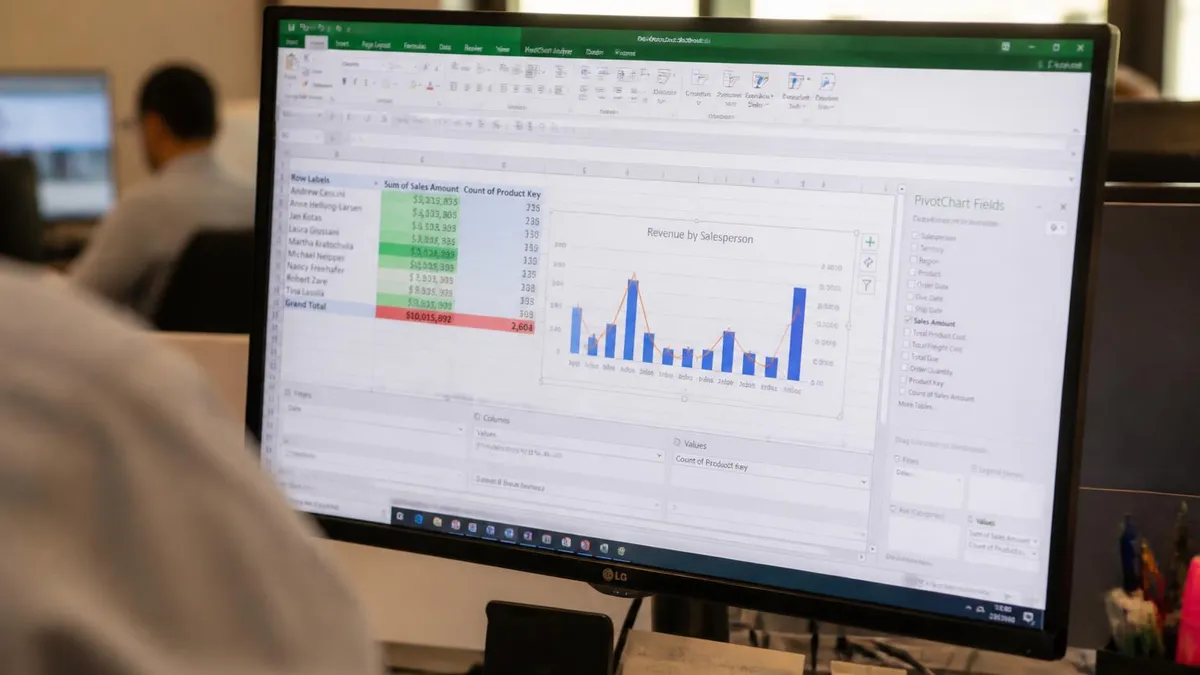
You don’t need to pirate Excel to get a working spreadsheet. LibreOffice Calc (libreoffice.org) is free, open source, and handles 90% of real-world Excel tasks including most VBA macros. Google Sheets is free with a Google account, runs in the browser, and edges Excel in real-time collaboration. Apple Numbers is free on every Mac and iOS device and reads .xlsx files natively. WPS Office looks almost identical to Excel, costs nothing (with ads), and is widely used across Asia. OpenOffice Calc still exists too — older interface but stable. Try one of these before deciding the cracked download is your only option.
Desktop Excel vs Excel for the Web
- +Full formula library including all 500+ functions
- +Power Query and Power Pivot for serious data work
- +VBA macros and add-ins fully supported
- +Works offline — no internet required after install
- +Advanced chart types and conditional formatting
- +Larger workbook size limit (1M+ rows)
- −Free with any Microsoft account, no install needed
- −Co-editing built in — multiple users at once, in real time
- −Auto-saves to OneDrive continuously
- −Identical look on Windows, Mac, Chromebook, Linux
- −Always the latest version — never out of date
- −Decent for everyday spreadsheets up to ~100K rows
Pros and Cons at a Glance
| Pros | Cons |
|---|---|
| Power Query and Power Pivot for serious data work | Free with any Microsoft account, no install needed |
| VBA macros and add-ins fully supported | Co-editing built in — multiple users at once, in real time |
| Works offline — no internet required after install | Auto-saves to OneDrive continuously |
| Advanced chart types and conditional formatting | Identical look on Windows, Mac, Chromebook, Linux |
Free Excel Alternatives Worth Trying First
Before you commit to a Microsoft 365 subscription, it’s worth taking each of the free options for a spin. None of them are perfect Excel clones, but for many users they cover everything they actually need. And they cost zero dollars.
LibreOffice Calc
The closest free thing to desktop Excel. Reads and writes .xlsx files cleanly, supports most Excel formulas including VLOOKUP, XLOOKUP, INDEX/MATCH, and the dynamic array functions. The macro language (LibreOffice Basic) is similar enough to VBA that simple macros port over with minor tweaks. Where it struggles: very complex pivot tables, Power Query equivalents, and a handful of newer chart types. For a free download from libreoffice.org, the package is remarkably capable.
Google Sheets
Browser-based, free with a Google account, and wins decisively for collaboration. Multiple people can edit the same sheet simultaneously with cursor-position awareness, comment threads, and full version history. Where it loses to Excel: very large workbooks (Sheets caps out around 10 million cells per file, which sounds like a lot until you hit it), advanced statistical analysis, and any kind of macro work.
ARRAYFORMULA and QUERY are powerful, but the function library is overall thinner. Excellent for shared budgets, light project tracking, and anything in the Google Workspace ecosystem. Our guide on moving from Excel to Google Sheets covers the conversion gotchas in detail.
Apple Numbers
Free on every Mac, iPhone, and iPad. Beautiful interface, design-forward, and surprisingly capable for simple-to-moderate spreadsheets. It opens .xlsx files but doesn’t always preserve formatting perfectly on the way back to Excel — charts and conditional formatting are the most common casualties. Numbers shines for personal budgets, event planning, and any spreadsheet where presentation matters more than data crunching. For interoperability with a non-Apple team, this is not the right choice.
WPS Office
A Chinese productivity suite that mimics the Microsoft Office interface almost perfectly — same ribbon, similar menus, same general layout. The Spreadsheets module reads and writes .xlsx files cleanly and supports nearly every Excel formula. Free version is ad-supported and limits some advanced features. WPS has 500+ million users worldwide, mostly in Asia, and the product is genuinely polished. The ad model can grate after a while; the $35/year premium tier removes it.
OpenOffice Calc
The older sibling of LibreOffice (both came from the same OpenOffice.org project before a fork in 2010). It still works, still reads .xlsx files, still costs nothing — but development has slowed considerably and LibreOffice gets all the modern improvements. Worth knowing about, not worth choosing over LibreOffice.
Excel for Mobile vs Excel for Desktop: Feature Comparison
The mobile apps are not stripped-down marketing gimmicks. They’re actually capable spreadsheet editors — just shaped by the constraints of small screens and touch input. Knowing what they can and can’t do helps you decide whether to lug a laptop around or just rely on your phone.
What works well on mobile. Opening and viewing workbooks is excellent on both iOS and Android. Charts render correctly, formulas calculate the same way they do on desktop, and conditional formatting displays as expected. Light editing — updating cells, adding rows, applying simple formatting — works fine, especially on tablets. The iPad version in particular has a near-desktop experience when paired with a keyboard and trackpad.
What gets frustrating. Building complex formulas on a phone screen is genuinely painful. The formula bar is small, autocomplete is hit-or-miss, and the function-picker menus require a lot of scrolling. Pivot tables can be created on tablet but really not on phone. VBA macros simply don’t exist in the mobile apps — they’re stripped from the codebase entirely. Same for Power Query and any add-ins.
What you cannot do on mobile, period. Run macros. Use third-party add-ins. Connect to external data sources via Power Query. Use Power Pivot. Print to anything other than AirPrint or Google Cloud Print. Manage workbook protection with passwords (you can open password-protected files but not set new passwords).
The practical conclusion: mobile Excel is excellent for review, light edits, and quick data entry on the go. For any real spreadsheet work — building models, analyzing data, running macros — you still want the desktop version. And remember, Excel for the Web in a mobile browser is often more capable than the dedicated mobile app for power-user features, because the web version doesn’t strip out as much functionality. Counterintuitive but true.
System Requirements for Microsoft Excel 2024
Microsoft’s official system requirements are forgiving but worth checking before you buy. For Windows: Windows 10 or Windows 11, x64 processor (no more 32-bit support as of Office 2024), 4 GB of RAM minimum (8 GB strongly recommended for anything beyond basic spreadsheets), and 4 GB of free disk space. For Mac: macOS Monterey (12) or later, Apple Silicon or Intel-based Mac, 4 GB of RAM, 10 GB of free disk space (Mac packages bundle more shared components).
The 4 GB RAM minimum is really a 4 GB “will technically run” number. Real-world performance on workbooks larger than 50,000 rows demands more — 16 GB is comfortable, 32 GB is what serious analysts use. Modern laptops mostly ship with 16 GB or more anyway, so this is rarely a blocker.
Excel for the Web has essentially no system requirements beyond a modern browser. Chrome, Edge, Firefox, and Safari are all supported. Even a Chromebook from 2018 or a budget Android tablet runs it acceptably.
Sample Excel Practice Questions
Try these questions from our free Excel practice tests. The correct answer and an explanation follow each question.
Which of the following is NOT a valid Excel chart type?
- A. Pyramid Bar
- B. Line
- C. Scatter
- D. Pie
Answer: A. Pyramid Bar
Excel does not have a 'Pyramid Bar' chart type; the standard types include Line, Scatter, Pie, Bar, Column, and others.
What does the CONCATENATE function (or the & operator) do in Excel?
- A. Joins two or more text strings into one
- B. Counts the number of characters in a string
- C. Searches for one text string within another
- D. Converts numbers to text format
Answer: A. Joins two or more text strings into one
CONCATENATE (or the & operator) combines multiple text values into a single string, for example =A1&" "&B1.
Which Excel function extracts a specified number of characters from the left side of a text string?
- A. MID
- B. LEFT
- C. FIND
- D. TEXT
Answer: B. LEFT
LEFT(text, num_chars) returns the specified number of characters from the beginning of a text string.
What does the NOW() function return in Excel?
- A. Only the current date
- B. The current date and time
- C. Only the current time
- D. The date and time the file was last saved
Answer: B. The current date and time
NOW() returns the current date and time as a serial number that updates whenever the worksheet is recalculated.
Excel Questions and Answers
More Excel Resources

Excel for Microsoft 365: Features, Pricing & Editions

Microsoft Copilot for Excel: Complete Guide to AI-Powered Spreadsheets in 2026

Excel Functions List: The Complete Reference Guide to Every Formula You Need in 2026

Excel Cheat Sheet: Formulas, Shortcuts & Quick Reference

Excel to Google Sheets: The Complete 2026 Migration Guide for Spreadsheet Users

Excel Finance Functions Guide With PMT, NPV, IRR and Loan Models
About the Author

Business Consultant & Professional Certification Advisor
Wharton School, University of PennsylvaniaKatherine Lee earned her MBA from the Wharton School at the University of Pennsylvania and holds CPA, PHR, and PMP certifications. With a background spanning corporate finance, human resources, and project management, she has coached professionals preparing for CPA, CMA, PHR/SPHR, PMP, and financial services licensing exams.