
How to Enter on Excel: Line Breaks, Cell Navigation, and Confirmation Tricks
How to enter on Excel: 📝 insert line breaks within cells, navigate after Enter, use Alt+Enter, control direction with Tab and Shift+Enter, and avoid

'How to enter on Excel' sounds like the most basic question imaginable, but it covers more ground than you'd expect. The Enter key has different behaviors depending on context. There's a way to add line breaks within a single cell (the famously missing-from-the-menu Alt+Enter). The direction Excel moves after pressing Enter is configurable. Sometimes you want to commit a value without moving at all. And the difference between Enter, Tab, and Shift+Enter shapes how efficient your data entry actually is.
This guide covers every aspect of pressing Enter in Excel — the basic mechanic, line breaks within cells, controlling navigation direction, keyboard alternatives, and the surprising number of ways the Enter key interacts with formulas, fill operations, and array formulas. By the end you'll handle data entry efficiency that most Excel users never bother to learn, even after years of using the tool.

What You'll Use Daily
Plain Enter: commits the value and moves down to the next cell. Alt+Enter: inserts a line break within the current cell, letting you have multi-line text in one cell. Tab: commits the value and moves right instead of down. Shift+Enter: commits and moves up. Shift+Tab: commits and moves left. These five combinations cover most Excel data entry scenarios.
Enter Key Behaviors
Press Enter to commit whatever you've typed or pasted into a cell. Excel saves the value and moves the selection — default direction is down.
Default is down after Enter. Configurable in Excel Options > Advanced. You can change to up, right, left, or no movement after Enter.
Alt+Enter (Option+Return on Mac) inserts a line break inside the cell without committing. Cell wrap text is automatically enabled.
Ctrl+Enter commits the value but keeps the same cell selected. Useful for entering and immediately reviewing the entered value.
Let's start with the basic Enter behavior. Click any cell. Type some text or a number. Press Enter. Excel commits the value to that cell and moves the selection down to the next cell. This is the default behavior — straightforward and what most users expect. The down-movement makes sense for entering vertical lists of data, which is the most common pattern in spreadsheets.
To change the direction Excel moves after Enter, go to File > Options > Advanced. The very first option under Editing options is 'After pressing Enter, move selection'. Choose Down, Up, Right, Left, or uncheck the box entirely to stay on the current cell. The default is Down which works for most workflows. Some users prefer Right when entering data in rows. Some prefer to disable the movement entirely so they have explicit control over navigation.
Tab moves right after committing a value. Useful when entering data across columns (filling in rows of data). The pattern: Type value, Tab to next column, type value, Tab, type, Tab, then Enter at the end of the row. Pressing Enter at the end of a row moves down to the row below AND back to the leftmost cell where you started typing — Excel remembers the starting column. This makes row-by-row data entry fast and intuitive without manually navigating back to the left after each row.
Enter Key Reference
Special Enter Variations
Inserts a line break within the cell. Type some text, press Alt+Enter, type more text, press Enter to commit. The cell shows two lines. Excel auto-enables Wrap Text. Essential for addresses, lists within cells, multi-line notes.
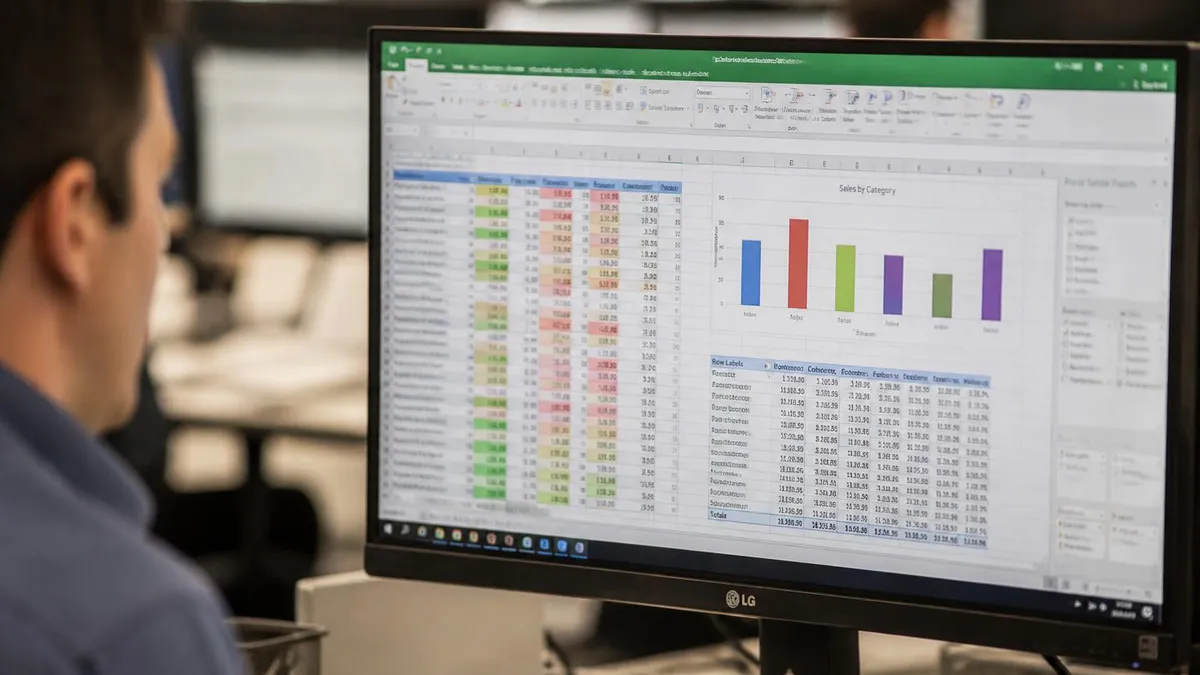
The Alt+Enter line break trick is one of the most useful Excel shortcuts most people never learn. Click in a cell. Type the first line of text. Press Alt+Enter (Option+Return on Mac) — the cursor moves to a new line within the same cell. Type the second line. Continue with more Alt+Enter for additional lines. Press Enter to commit. The cell now shows multiple lines of text. Excel automatically enables Wrap Text so the lines display correctly. This is essential for addresses, multi-line notes, or any content that needs visible structure within a single cell.
Alt+Enter doesn't work directly in the formula bar — you need to be editing a cell to use it. If you're entering values in the formula bar specifically, the Alt+Enter shortcut still works but requires you to be in cell-edit mode (press F2 or double-click the cell first). After entering line breaks, the cell shows multiple lines when not selected, but the formula bar shows the value with explicit line break characters when the cell is selected.
Removing line breaks from existing cells uses a different technique. The line break character is CHAR(10) in Excel formulas. To remove all line breaks from a cell: =SUBSTITUTE(A1, CHAR(10), ' ') replaces line breaks with spaces. Or use Find and Replace: Ctrl+H, in the Find box press Ctrl+J (which represents the line break character — note nothing appears visually), in the Replace box type whatever you want (space or nothing), click Replace All. The Ctrl+J trick is one of those obscure Excel quirks that's invaluable when you need it.
Excel Online (in browsers) uses different keyboard shortcuts than desktop Excel. To insert a line break in a cell, the shortcut may be different depending on browser and OS. The exact combination has changed over time as Microsoft updates the web version. If Alt+Enter doesn't work in your browser version, search Excel's help for the current shortcut on your platform.
Common Enter Frustrations
If Enter isn't moving as expected, check File > Options > Advanced > After pressing Enter, move selection. The direction or movement-enabled setting may have been changed.
If pressing Enter shows a function-argument dialog instead of committing, you're probably in a function with required arguments. Complete the function or press Escape to cancel.
On some keyboards (especially Mac), the Alt+Enter shortcut requires Option+Return or even Control+Option+Return. Try variations to find what works on your specific setup.
If your sheet is in Group mode (multiple sheets selected), Enter affects all grouped sheets simultaneously. Right-click sheet tab > Ungroup Sheets to fix.
Ctrl+Enter has two useful behaviors. With a single cell selected, Ctrl+Enter commits the value and keeps the same cell selected — useful when you want to enter a value and immediately review the formula result or the formatted display. With multiple cells selected, Ctrl+Enter fills all selected cells with the same value. The pattern: select a range, type a value, press Ctrl+Enter. Every cell in the range gets the value. This is faster than typing in one cell and copy-pasting to others.
The fill-with-Ctrl+Enter trick works with formulas too. Select multiple cells, type =A1*2 (or any formula), then Ctrl+Enter. The formula fills all selected cells with adjusted relative references. Each cell gets its own version of the formula based on its position. This is faster than typing in one cell and dragging the fill handle, especially for non-contiguous selections.
For non-contiguous selections, the fill trick is especially powerful. Hold Ctrl while clicking to select multiple non-adjacent cells. Type your value or formula. Press Ctrl+Enter. All selected cells get the value or formula. This handles situations where you want to enter the same data in scattered cells without copying and pasting to each one individually. The non-contiguous selection capability is one of Excel's underused power-user features.
Enter in Different Contexts
Commits the value and moves per your settings (default down). The most common context — this is what users typically mean by 'press Enter in Excel'.

When Excel is in Edit Mode (cursor blinking inside a cell), the Enter key behavior is more constrained than in Ready mode. You can use arrow keys to move within the cell text rather than moving to a different cell. Enter commits the cell. Escape cancels without committing. F2 toggles between Edit mode (cursor inside cell) and Enter mode (cursor at end of cell for appending). These modes affect what Enter does and how navigation works.
For data entry sessions where you're typing many values quickly, configuring keyboard shortcuts helps efficiency. Some users enable 'Allow editing directly in cells' (it's on by default). Some disable 'After pressing Enter, move selection' so they have explicit control over navigation. Some enable AutoComplete for cell values to speed up entry of repeated values. These small configuration changes accumulate into real time savings during data-heavy work sessions.
If you frequently enter the same data into the same cells, consider whether a form or data validation dropdown would be faster than typing. Excel has Data Validation that creates dropdown lists in cells. Data > Data Validation > List > enter your options. The dropdown appears whenever those cells are selected, letting users pick rather than type. For consistent values across spreadsheets (status codes, categories, department names), dropdowns prevent typos and ensure data quality.
Mastering Enter in Excel
- ✓Use plain Enter for normal value entry (move down)
- ✓Use Tab to fill in rows across columns
- ✓Use Alt+Enter for line breaks within cells
- ✓Use Ctrl+Enter to fill multiple selected cells at once
- ✓Use Shift+Enter to move up instead of down
- ✓Use Shift+Tab to move left instead of right
- ✓Configure Enter direction in File > Options > Advanced if default doesn't suit you
- ✓Press F2 to enter Edit mode within a cell when you need to modify existing content
- ✓Use Escape to cancel without committing changes
- ✓Remember Ctrl+J in Find & Replace for searching line break characters
For users on different keyboards and operating systems, the Enter key behaviors vary subtly. Mac users often need Option+Return instead of Alt+Enter for line breaks. Some compact keyboards have a Return key with slightly different behavior than Enter. Numeric keypad Enter usually behaves identically to main Enter but occasionally produces different results in dialog boxes. If shortcuts don't work as documented, try variations on your specific hardware before assuming the documentation is wrong.
For users working with imported data that has unwanted line breaks (often from CSV imports or copy-paste from text documents), cleaning up is straightforward. Find and Replace with Ctrl+J in the Find box and your preferred replacement in the Replace box handles bulk cleanup. SUBSTITUTE function with CHAR(10) for in-formula handling works for selective cleaning. TRIM function handles leading and trailing whitespace separately. CLEAN function removes non-printable characters that aren't visible but cause comparison issues. Combining these handles most messy text cleanup tasks.
Auto-Correct can interfere with Enter behaviors in unexpected ways. If you type values that Excel converts to something else (like '1/2' becoming a date), this happens at the moment you press Enter to commit. To prevent autocorrect changes, format the cell as Text before entering data, or prefix entries with an apostrophe (') to force text interpretation. The apostrophe doesn't display but Excel treats the cell as text rather than trying to interpret the input.
For Excel Online and mobile Excel users, Enter behaviors are mostly similar to desktop but with some platform-specific quirks. Mobile keyboards may have different layouts that affect shortcut accessibility. Touch interfaces use tap and onscreen keyboards rather than physical Enter keys. The basic principles transfer but the muscle memory you build on desktop doesn't fully transfer to mobile workflows. Plan to relearn shortcuts when working primarily on mobile or web Excel.
Before starting a long data entry session, save your work. Excel does autosave to cloud locations, but extensive unsaved typing is at risk if the application crashes. Save every 10-15 minutes during active entry. Combine with consistent use of the right Enter shortcuts for the fastest, safest data entry workflow possible.
For developers building Excel automation through VBA, the Enter key triggers events that you can capture and handle. Worksheet_Change events fire when a cell value changes (which happens when Enter commits). Workbook_BeforeSave events can validate data before allowing saves. These events let you build sophisticated data entry validation, automatic calculations, or workflow triggers that respond to user Enter actions. VBA automation extends Excel beyond what manual shortcuts can do for repetitive tasks.
For users transitioning from other spreadsheet tools to Excel, the Enter conventions may take getting used to. Google Sheets has similar behaviors but with subtle differences. Numbers (Apple) handles cell navigation distinctly. Old Lotus 1-2-3 users sometimes need to retrain muscle memory. The good news: Excel's Enter behaviors are well-documented and consistent within Excel, so once you've learned them on Excel they work the same way across all your Excel work.
The deeper lesson behind 'how to enter on Excel': the small interactions you do hundreds of times per day compound into significant productivity differences over time. Learning that Alt+Enter creates line breaks saves minutes per use. Learning that Tab moves right makes row-by-row entry dramatically faster. Learning that Ctrl+Enter fills selections eliminates repetitive copy-paste. None of these is dramatic individually, but together they distinguish power users from casual users. Investing a few minutes to learn the patterns described here pays off across every Excel session you'll ever have for years afterward.
Mastering Enter Shortcuts
- +Faster data entry across all spreadsheet work
- +Cleaner multi-line text within single cells via Alt+Enter
- +Bulk-fill multiple cells at once with Ctrl+Enter
- +Better control over navigation with Tab and Shift+Tab
- +Skills transfer to every Excel workbook you'll ever use
- +Compounds into significant productivity improvement over time
- −Slight initial learning curve for less-common shortcuts
- −Mac and Windows shortcuts differ in some cases
- −Excel Online doesn't fully replicate desktop shortcuts
- −Default direction settings can confuse new users
- −Some shortcuts behave differently inside dialog boxes versus cells
The numeric keypad Enter usually behaves identically to the main Enter key, but some keyboard drivers treat them differently. If your numpad Enter does something unexpected (like inserting tabs or opening menus), check your keyboard driver settings. Standardizing numpad Enter to behave like main Enter is generally what most users want.
For advanced data entry scenarios, several Enter-related techniques deserve specific mention. When entering many similar values in a list (like dates progressing by one day), you can type the first two values, select both, and use the Fill Handle (the small square at the bottom-right of selection) to extend the pattern. Excel detects the pattern from your first two entries and continues it. Date sequences, number sequences, and day-of-week sequences all work this way. This handles bulk-entry scenarios that would otherwise require many individual Enter presses.
For dropdown-based data entry (using Data Validation), the Enter key behavior is straightforward. Click the cell, click the dropdown arrow, select your value, press Enter to commit. Or use Alt+Down to open the dropdown from the keyboard without mouse. Arrow keys select within the dropdown, Enter commits. This all-keyboard workflow is much faster for repetitive selection from dropdowns than mouse-based interaction.
Excel Tables have special Enter behaviors worth knowing. When you're at the bottom-right cell of a Table and press Tab, Excel automatically extends the Table by adding a new row, with the cursor moving to the first cell of the new row. This auto-expansion combined with row navigation makes data entry into Tables especially efficient. You can enter entire datasets without manually adding rows or repositioning the cursor.
For formulas specifically, the Enter behavior matters more than for plain values. Pressing Enter while editing a formula commits the formula and Excel evaluates it. Pressing Escape cancels the edit and reverts to the previous value. Pressing F9 while editing a formula evaluates the highlighted portion and shows the result inline — extremely useful for debugging complex formulas. The combination of Enter to commit, Escape to cancel, and F9 to evaluate gives you fine control over formula development.
Pressing Enter inside cell references has another useful behavior worth knowing. While editing a formula, if you click another cell to add it as a reference, Excel inserts that cell address into the formula. Pressing Enter at that point commits the formula. But if you want to add the cell reference and continue typing rather than commit, just continue typing — Excel doesn't immediately commit after clicking a cell during formula editing. This lets you build complex formulas with multiple references through pointing rather than typing addresses.
Worksheet protection affects Enter behaviors in specific ways. When sheets are protected and certain cells are locked, pressing Enter still tries to commit values but Excel rejects the entry with an error message if the target cell is locked. To allow data entry only in specific cells, unlock those cells before applying sheet protection. This pattern creates input forms where users can enter data in designated cells but cannot accidentally modify formulas or labels.
For very rapid data entry, custom keyboard configurations help some users. Tools like AutoHotkey on Windows let you remap keys, create text expansion shortcuts, or build custom workflows that integrate with Excel. For users doing extensive repetitive data entry as part of their job, investing time in keyboard customization can produce significant productivity gains. The investment is usually only worthwhile for users spending many hours per week on similar data entry tasks across multiple workbooks.
Finally, voice input has become surprisingly viable for Excel data entry in recent years. Modern Windows and Mac voice recognition handles basic spreadsheet data entry well. For users with mobility limitations or those who prefer talking to typing, voice input combined with Excel's keyboard shortcuts (which voice software can typically trigger) opens up productive workflows that weren't practical even a few years ago in most accessibility-oriented or professionally-focused Excel work environments across many different industries that depend on Excel for daily work today.
Excel Enter Questions and Answers
About the Author

Business Consultant & Professional Certification Advisor
Wharton School, University of PennsylvaniaKatherine Lee earned her MBA from the Wharton School at the University of Pennsylvania and holds CPA, PHR, and PMP certifications. With a background spanning corporate finance, human resources, and project management, she has coached professionals preparing for CPA, CMA, PHR/SPHR, PMP, and financial services licensing exams.