
How to Calculate Variance in Excel: VAR.S, VAR.P, and Real Examples 2026
Learn how to calculate variance in Excel using VAR.S and VAR.P. 💯 Step-by-step examples, sample vs population, common errors, and budget variance formulas.

Variance tells you how spread out your numbers are. If sales bounce between $40K and $80K each month, you've got high variance. If they stay glued near $50K, variance is low. It's a single number that captures consistency, and Excel can compute it for you in one keystroke. The math behind it has been around since the 19th century, but you'll never need to do that math by hand once you know which function to call. Practice with the free Excel practice test on PracticeTestGeeks (500+ questions with answer explanations).
This guide walks through the two main functions you'll use, VAR.S for samples and VAR.P for entire populations. You'll also meet the older VAR, the rarely-needed VARA, and the budget-variance formulas that finance teams actually run every month.
You'll see how variance connects to standard deviation, why one is more useful in reports, and how to dodge the classic mistakes that tank an analysis. Whether you work in finance, ops, marketing, or product, the patterns repeat. The half-hour you spend learning this once pays back forever.
Before opening Excel, it helps to nail down what variance actually measures. Variance is the average of the squared distances between each value and the mean. Squaring keeps every difference positive — otherwise deviations above and below the average would cancel out. Then you average them.
The downside? Squaring inflates units. If you measure dollars, variance is in dollars-squared, which nobody intuitively understands. That's why most reports show standard deviation instead. Variance is still the foundation of ANOVA, regression, and F-tests, so analysts can't ignore it. Get the basics right and you'll handle both the math and the messy spreadsheet realities. For more foundational formula skills, brush up on Excel formula basics before diving deeper.
Free Excel Study Tools
Interactive Excel resources on PracticeTestGeeks, free to start:
- Excel practice test — 500+ questions with instant scoring and answer explanations
- Excel flashcards — review key terms and concepts card by card
- Excel study guide — topic-by-topic overview of what the exam covers
- Excel cheat sheet — one-page printable summary for last-minute review

Quick answer: use =VAR.S(A1:A100) when your data is a sample (most cases). Use =VAR.P(A1:A100) when your data covers the entire population. Both return a squared number; take the square root with STDEV.S or STDEV.P for an interpretable result in original units.
Excel Variance Functions Compared
Use when: your data is a sample drawn from a larger population. This is the right choice 95% of the time in business analysis.
Syntax: =VAR.S(value1, [value2], ...) — accepts up to 255 arguments, individual cells, or ranges.
Why it divides by n-1: samples slightly underestimate true population spread. Dividing by n-1 (Bessel's correction) corrects the bias. The result is a more honest estimate when you're inferring something about a bigger group.
Example: =VAR.S(A1:A6) returns about 46.97 for monthly sales of $45K, $52K, $48K, $61K, $43K, $55K.
Let's run a real example. Open a blank sheet and type six numbers in column A: 45, 52, 48, 61, 43, 55. These represent monthly sales in thousands. In cell B1 type =AVERAGE(A1:A6) — you'll get 50.6667. In B2 type =VAR.S(A1:A6) — about 46.97. In B3 type =STDEV.S(A1:A6) — about 6.85.
What does that tell you? Most months land within $6.85K of the $50.67K average. One outlier (the $61K month) is pulling spread upward. If you ran the same calculation on a year of data and saw variance climb to 200, you'd know consistency is slipping. A single number summarizes how predictable your process is.
Try changing one value to $90K and watch variance triple. The function rewards extreme values quadratically because every deviation gets squared. Outliers carry far more weight than they would in a simple average.
This sensitivity is both a feature and a bug. It's a feature when you want a metric that screams the moment your process drifts. It's a bug when one bad data point or typo distorts your entire analysis. Always eyeball your raw data for obvious errors before computing variance, and consider strong alternatives like AVEDEV (mean absolute deviation) when you suspect dirty inputs.
A practical workflow: compute both the mean and the variance side by side in two adjacent cells. Then add a sparkline showing the raw data. Your eye will catch outliers in seconds, and the numeric variance gives you the precise figure for any report or dashboard you build on top. Pin those cells to a summary tab so every refresh keeps the snapshot consistent across stakeholders and weeks.
Excel Variance Functions At a Glance
- Purpose: Sample variance
- Divisor: n - 1
- Use case: Most business analysis
- Replaces: Legacy VAR
- Purpose: Population variance
- Divisor: n
- Use case: Entire population only
- Replaces: Legacy VARP
- Purpose: Standard deviation
- Output: Square root of variance
- Use case: Reports and CIs
- Units: Original units
- Purpose: Mean absolute deviation
- Output: Average |x - mean|
- Use case: Strong spread measure
- Units: Original units
If you want to see how Excel arrives at the result, calculating variance manually is a good five-minute exercise. Walk through the steps once and the formula stops feeling like a black box. You'll also catch errors faster when something looks off in your data. The five-step pattern below is the same one VAR.S runs internally, just with a calculator instead of a CPU.
Manual Variance Calculation in 5 Steps
Step 1: Find the mean
Step 2: Subtract the mean
Step 3: Square each deviation
Step 4: Sum the squared deviations
Step 5: Divide by n-1 or n
One question trips up almost every newcomer: when do I use VAR.S versus VAR.P? The honest answer is that VAR.S fits the vast majority of real-world cases. You're almost always working with a sample, even if it doesn't feel that way. A year of monthly sales is a sample of your business's possible outcomes. Last quarter's customer survey responses are a sample of customer opinion. Test scores from one classroom are a sample of student ability.
True populations are rare. Every employee in your company on payroll day? Sure, that's a population. Every transaction in March? Yes. But the moment you want to predict next month or generalize, you're back to sample territory. When in doubt, default to VAR.S. The Bessel correction nudges your estimate toward truth.
The numerical difference between the two formulas shrinks as your sample grows. For datasets above a few hundred rows the choice barely matters. For small samples — under 30 rows — the difference is real, and using the wrong function can throw off your inference noticeably.
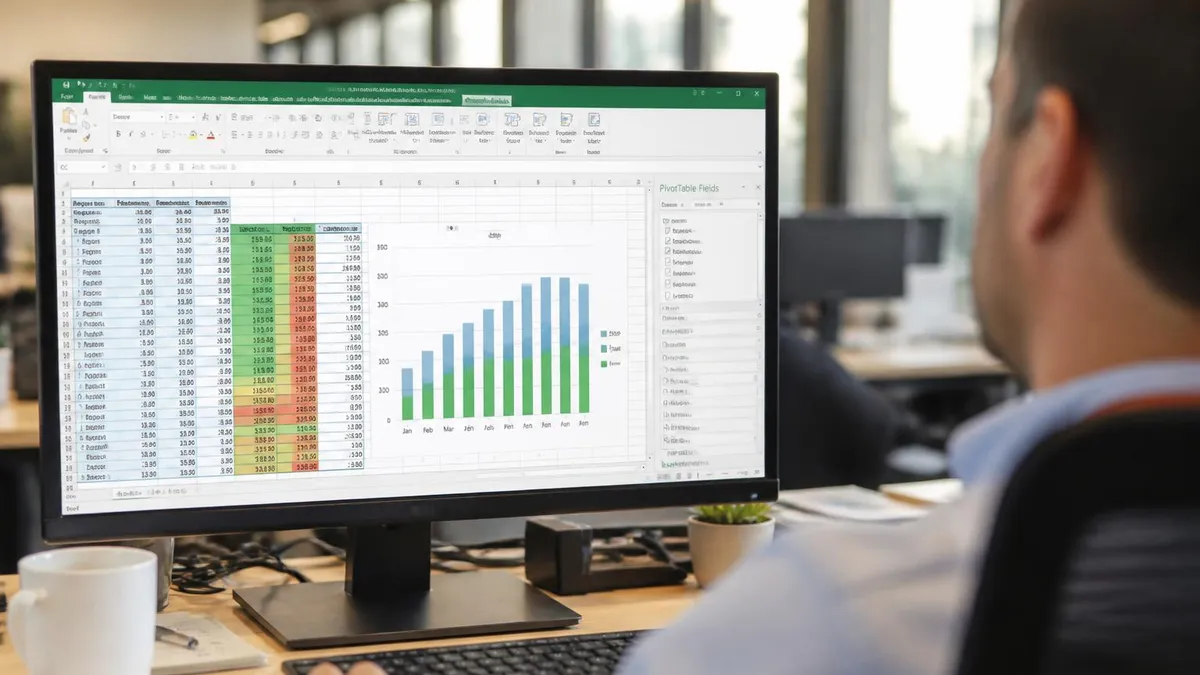
Watch out: mixing VAR.S and VAR.P across the same analysis is a silent killer. If you compute sample variance for one group and population variance for another, your comparison is invalid. Pick one and stick with it through the entire workbook.
Errors happen. You'll see #DIV/0! when there's only one value (or every value is identical) and Excel can't divide by n-1 = 0. Fix it by adding more data or switching to VAR.P. #VALUE! shows up when text sneaks into a numeric range — usually a stray header row or an apostrophe-prefixed number. #NUM! is rare but appears with extreme magnitudes that overflow Excel's number storage.
The trickiest error doesn't look like an error at all: using VAR.P on a sample. Excel returns a clean number, you paste it into a report, and your inference is biased. There's no warning. The only defense is discipline about which function fits your data. If you need a refresher on writing safe formulas, our Excel formulas cheat sheet covers the syntax patterns that prevent half these problems. Build a habit of naming your ranges, too: =VAR.S(MonthlySales) reads better than =VAR.S(A2:A37) and survives row insertions.
For shared workbooks, drop a brief comment next to each variance cell explaining whether it represents a sample or the entire population calculation. Future-you (or your replacement) will thank you. Comments live with the formula and survive copy-paste, which a verbal hand-off across weeks never reliably does.
Now for the part that confuses non-statisticians: budget variance is not statistical variance. They share a name and live in the same spreadsheet, but they measure entirely different things. Statistical variance is always a non-negative number describing spread. Budget variance is a signed difference: actual minus budget. It can be positive (over budget) or negative (under budget), and there's no squaring involved.
Finance teams use budget variance constantly. Marketing spent $48K against a $50K budget? Variance is -$2K, or -4%. Sales hit $130K against a $120K target? Variance is +$10K, or +8.3%. The arithmetic is trivial; the meaning is everything.
Boards and CFOs care about the percentage as much as the dollar amount. A $5K miss against a $10K budget is catastrophic. A $5K miss against a $1M budget is rounding error. Always show both columns side by side.
Budget Variance Formulas in Excel
Put your budget in cell A1 and actual in B1. In C1 type =B1-A1. Negative means under budget, positive means over. That's the absolute variance in dollars (or whatever unit you're tracking).
For a whole sheet, drag the formula down. Sum the column to see overall variance for the period.
Beyond the two main flavors of variance, Excel offers a constellation of related functions. Knowing what each one does saves you from reinventing wheels. The most useful for everyday analysis are STDEV.S (the workhorse for reports), AVERAGE (always pair it with variance), and STANDARDIZE (turns raw values into z-scores so you can compare across scales). Z-scores are particularly handy when you need to flag outliers programmatically: anything beyond ±2 standard deviations is unusual; beyond ±3 is rare.
For more advanced statistical work, F.TEST compares two variances directly and tells you whether they're significantly different. CONFIDENCE.NORM builds a confidence interval around your mean using SD and sample size.
The Data Analysis Toolpak (an Excel add-in, free with every Excel license) includes a one-click ANOVA that uses variance internally. Activate it under File → Options → Add-ins → Manage Excel Add-ins → Analysis ToolPak. Most analysts forget the Toolpak exists, then waste hours building things by hand that take it three clicks.
Variance Quick Interpretation
One concept worth adding to your toolkit: the coefficient of variation, or CV. It's the standard deviation divided by the mean, often multiplied by 100 for a percentage. Why bother? Because raw variance can mislead when you compare groups with different scales. A factory producing $1 widgets and a factory producing $1,000 turbines could both have a variance of 25 — but for the widget factory that's catastrophic, while for the turbine factory it's invisible.
CV normalizes the comparison. In Excel: =STDEV.S(A1:A10)/AVERAGE(A1:A10). A CV of 0.05 (5%) means tight consistency. A CV of 0.50 (50%) means the data swings wildly.
Investors use CV constantly to compare risk-adjusted return across asset classes. Quality teams use it to compare process consistency across product lines. Marketers use it for campaign-to-campaign variance in conversion rates. Whenever your audience asks "is this normal?" — CV gives a fair answer that doesn't get fooled by scale.

Variance vs Standard Deviation in Reports
- +Variance feeds directly into ANOVA, regression, and F-tests
- +Variances of independent groups are additive (SD is not)
- +Standard deviation reads in original units (more interpretable)
- +Standard deviation pairs naturally with mean for confidence intervals
- +Both available with one Excel function each
- −Variance lives in squared units (dollars-squared, etc.) — hard to explain
- −Reporting variance to non-technical stakeholders confuses them
- −Square-rooting in your head from variance to SD is annoying
- −Mixing the two in one report invites comparison errors
- −Beginners frequently confuse statistical and budget variance
Pros and Cons at a Glance
| Pros | Cons |
|---|---|
| Variance feeds directly into ANOVA, regression, and F-tests | Variance lives in squared units (dollars-squared, etc.) — hard to explain |
| Variances of independent groups are additive (SD is not) | Reporting variance to non-technical stakeholders confuses them |
| Standard deviation reads in original units (more interpretable) | Square-rooting in your head from variance to SD is annoying |
| Standard deviation pairs naturally with mean for confidence intervals | Mixing the two in one report invites comparison errors |
| Both available with one Excel function each | Beginners frequently confuse statistical and budget variance |
Where do you actually use variance day-to-day? Quality control teams track it on production lines: when variance creeps up, the process is drifting and needs investigation. Investment portfolios use variance as a direct measure of risk; modern portfolio theory is built on it, with Markowitz's foundational work treating variance as the very definition of risk. Sales teams compare forecast accuracy by computing variance between predicted and actual revenue across quarters.
HR departments use it to flag inconsistent performance reviews — high variance across reviewers for the same employee suggests bias or unclear criteria. Operations teams measure cycle-time variance to find bottleneck-prone steps. Customer support measures resolution-time variance to spot processes that work for some tickets but not others.
Once you've internalized the concept, you'll see opportunities to apply it everywhere. The biggest mindset shift: low variance is usually a competitive advantage. Predictable processes, predictable revenue, predictable quality — those compound into customer trust faster than headline numbers do.
Variance Reporting Best Practices
- ✓Always pair variance with the mean — neither tells the full story alone
- ✓Use standard deviation in stakeholder reports; reserve variance for technical work
- ✓Show coefficient of variation when comparing groups with different scales
- ✓Include sample size — small n means unreliable variance estimates
- ✓Visualize spread with a histogram or box plot, not just a number
- ✓Default to VAR.S unless you genuinely have the entire population
- ✓Be explicit when you mean budget variance vs statistical variance
- ✓Cross-check Excel output against a manual calculation for at least one dataset
Charts make variance tangible. Excel's built-in error bars on column or line charts can be set to standard deviation directly: select the chart, click the plus icon, choose Error Bars → More Options → Standard Deviation. The bars stretch one SD above and below each point, giving a quick visual cue for spread. Audiences who glaze over at numbers will react instantly to wide error bars on a forecast.
For richer views, the box-and-whisker plot (built into Excel 2016 and later) shows quartiles, median, and outliers in one shot. Histograms reveal whether your distribution is symmetric, skewed, or multimodal — which matters because variance alone can hide structural patterns.
Two datasets with identical mean and variance can look completely different on a histogram. A scatter plot with a trendline shows variance as vertical scatter around the regression line. The tighter the cloud, the lower the residual variance.
A note on platforms: Excel for Mac handles VAR.S, VAR.P, VARA, and VARPA identically to Windows. The function names, syntax, and output match exactly. Excel for the Web supports VAR.S and VAR.P fully, though some advanced add-ins (like the Data Analysis Toolpak) aren't available in the browser version.
Google Sheets uses the same names for compatibility, so formulas port over with no rewrite. If you collaborate across platforms, this matters — hand a workbook to a Mac user, a Windows user, or a browser-only stakeholder and trust the variance calc behaves the same.
One legacy quirk worth knowing: the older VAR function (no period) still works in modern Excel for backward compatibility. It returns the same result as VAR.S. Microsoft renamed it in Excel 2010 to make the sample-vs-population distinction explicit.
Use VAR.S in new spreadsheets; you'll only see plain VAR in older workbooks. The same applies to VARP, the legacy version of VAR.P. To level up your overall fluency, the same study path that covers how to do standard deviation in Excel teaches you the modernized function names. Pin them to memory and you'll skip the constant mental translation.
Pro tip: when your variance suddenly jumps in a tracked metric (sales, defect rate, response time), that's often a stronger signal than a change in the average. The mean can stay steady while the process becomes unpredictable. Watch both.
If you're moving from descriptive variance into inferential statistics, the next stop is the F-test. F.TEST(array1, array2) returns a p-value telling you whether two samples have significantly different variances. This matters before running a t-test — some t-test variants assume equal variances and others don't. Picking the wrong variant is a classic mistake. The F-test is a two-second sanity check that prevents it.
Beyond F-tests, ANOVA decomposes total variance into between-group and within-group components — useful when comparing multiple categories at once. Excel's Data Analysis Toolpak has a one-click ANOVA that wraps all the heavy lifting.
Linear regression's R² is also a variance ratio: it's the share of variance in the dependent variable explained by the model. When you see R² = 0.85, that means 85% of the spread in your outcome is captured by your inputs. Variance is the connective tissue of statistics, even when you don't see it explicitly in the formula.
Every Excel user runs into variance eventually, even if they don't realize it. Forecast accuracy, budget reviews, quality dashboards, investment analysis — all rely on quantifying spread. The functions take five seconds; the interpretation takes practice.
If you internalize three things from this guide, make them: VAR.S is your default, statistical variance is unrelated to budget variance, and standard deviation is what most audiences actually want to see. From here, build comfort with the related Excel standard deviation functions, then move on to confidence intervals, F-tests, and regression. Each one builds on the variance foundation you just installed. You don't need to memorize every formula. You need to know which one fits the question you're asking.
Sample Excel Practice Questions
Try these questions from our free Excel practice tests. The correct answer and an explanation follow each question.
If Excel's Auto Calculate option is disabled, how can you update the values of formula cells?
- A. F11
- B. F10
- C. F9
- D. F8
Answer: C. F9
Manual calculation mode means that Excel will only recalculate all open workbooks when we request it by pressing F9. It allows to choose whether we want to update formulas in worksheets or entire workbook.
In Excel, what does the formula =DATEIF(A1, B1, "M") calculate? (Note: DATEDIF)
- A. The difference in days between two dates
- B. The difference in months between two dates
- C. The difference in years between two dates
- D. The number of workdays between two dates
Answer: B. The difference in months between two dates
DATEDIF with "M" as the unit returns the number of complete months between the start and end dates.
In the formula `=VLOOKUP(A1, D1:F20, 3, FALSE)`, what does the `FALSE` argument signify?
- A. The formula will return an error if no match is found.
- B. The formula will look for an approximate match.
- C. The formula will search in the third row of the table array.
- D. The formula will only look for an exact match to the lookup value.
Answer: D. The formula will only look for an exact match to the lookup value.
In a VLOOKUP formula, the final argument (`range_lookup`) determines the match type. `FALSE` specifies that VLOOKUP must find an exact match for the lookup value. If an exact match is not found, it will return an #N/A error.
What does refreshing a PivotTable do?
- A. Deletes all filters applied to the PivotTable
- B. Converts the PivotTable to a regular table
- C. Updates the PivotTable to reflect changes in the source data
- D. Resets the PivotTable layout to the default
Answer: C. Updates the PivotTable to reflect changes in the source data
Refreshing updates the PivotTable to incorporate any additions, deletions, or changes made to the source data.
Calculate Variance in Excel Questions and Answers
About the Author

Business Consultant & Professional Certification Advisor
Wharton School, University of PennsylvaniaKatherine Lee earned her MBA from the Wharton School at the University of Pennsylvania and holds CPA, PHR, and PMP certifications. With a background spanning corporate finance, human resources, and project management, she has coached professionals preparing for CPA, CMA, PHR/SPHR, PMP, and financial services licensing exams.